Privacy
What stays on your device? A privacy checklist
Everything Screenshot Suite captures, records or annotates is processed and stored in your browser. By default the extension sends nothing: no capture, recording or annotation is ever uploaded, and the optional anonymous usage statistics are off unless you turn them on. Separately, Chrome's own settings sync can copy your preferences (not your captures) across your devices through your Google account.
Published · Updated
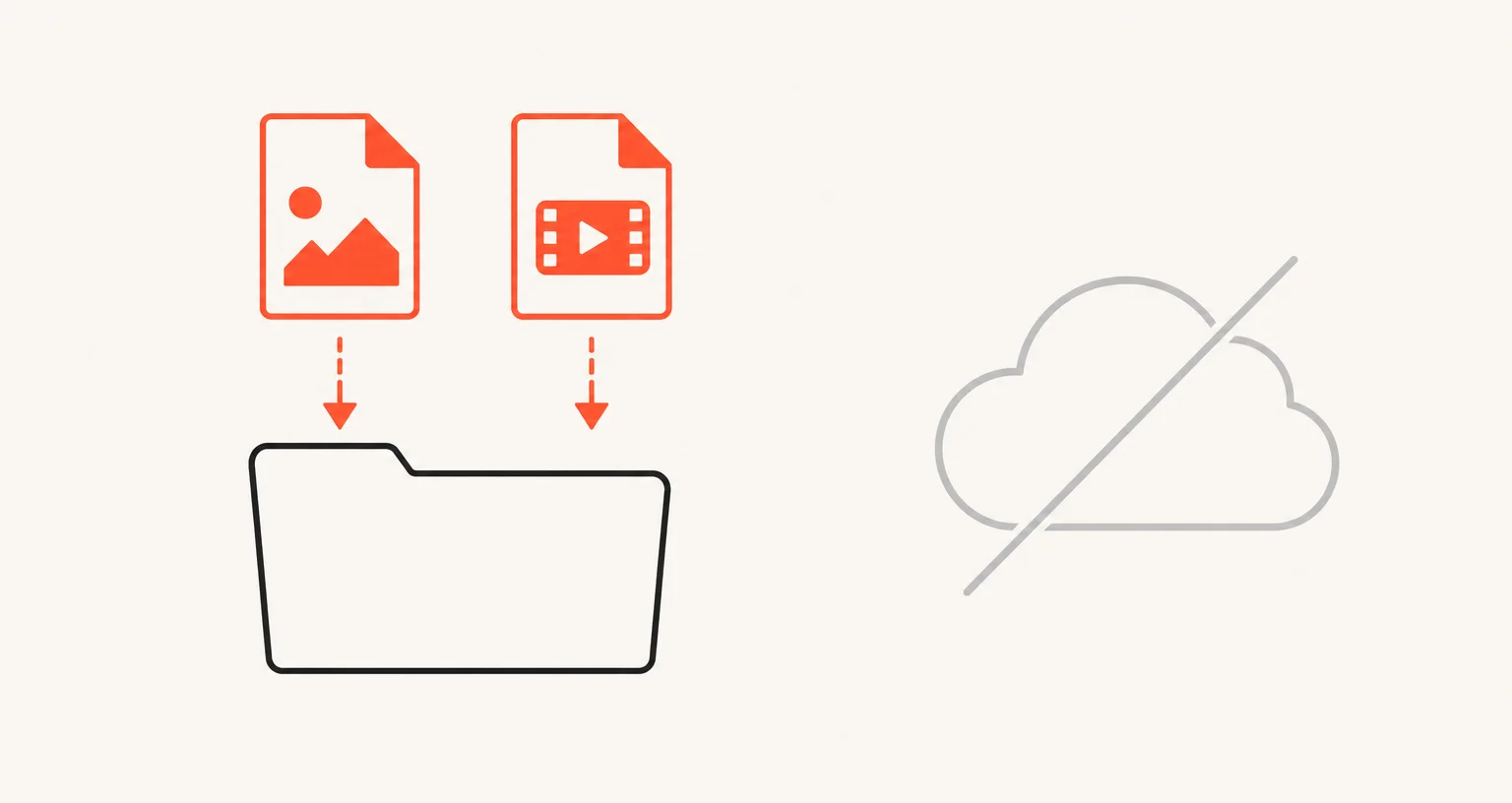
What does Screenshot Suite store, and where?
- History: the last 30 captures and recordings, with a thumbnail, source URL and date, in a local browser database (IndexedDB). Nothing else has access to it.
- In-progress captures: the image or video being handed from the capture step to the editor, held briefly in local browser storage.
- Recording state: whether a recording or a screen+webcam merge is in progress, cleared automatically when you close the browser.
- Settings: your chosen format, delay, and other preferences, in Chrome’s own settings storage.
- Exported files: ordinary PNG, JPEG, PDF, WebM, MP4 or GIF files, saved into a “Screenshot Suite” folder inside your Downloads folder.
None of this is a claim about intent. It’s what the extension’s code does, verified by reading it: it stores in the categories above and nowhere else.
Does anything leave your browser?
Not the content you create. By default the extension sends nothing at all: no calls to a server, no remote fonts or libraries. If you choose to turn on the optional anonymous usage statistics (they are off by default), it sends feature-use counts, the extension version, the interface language and a random anonymous identifier, and never what you captured, page addresses or browsing history. Even PDF and GIF files are built entirely inside your browser, not by uploading anything to a converter. One more thing is built on top of the browser rather than by the extension itself, covered next.
What does Chrome sync?
Chrome can synchronize your settings (format, delay, and similar preferences) across your own devices through your Google account, the same way Chrome syncs bookmarks or passwords for any extension that uses its settings-sync API. Your captures, recordings and history are never part of that sync; only the small set of preferences is.
How do you check this for any tool, not just this one?
A short, generic checklist that applies to any screenshot or screen-recording extension:
- Does it require an account to use the core features? If capturing or recording needs a sign-up first, your activity is tied to that account somewhere.
- Does its permissions list include broad access it doesn’t explain? A capture tool legitimately needs to read page content to capture it: a clear, itemized justification for each permission (see why Screenshot Suite asks for access to every site) is a good sign; a vague one isn’t.
- Does the default action upload your capture somewhere? Some tools generate a shareable link automatically. That’s a legitimate feature, but it means a copy exists outside your device unless you turn it off.
- Does the privacy policy name what it does with your data, in plain terms? Read Screenshot Suite’s own Privacy Policy as one example of what that should look like.
None of this requires trusting a claim on a marketing page: permissions, network behavior and privacy policies are all things you or anyone can check directly.
Frequently asked questions
Does Screenshot Suite require an account?
No. There's no sign-up and no account of any kind.
Does it use any cloud storage?
No. Captures, recordings and history stay on your device. The only thing Chrome may sync between your devices is your settings, through your own Google account, never your captures.
Where do my exported files go?
Into a "Screenshot Suite" folder inside your Downloads folder, as ordinary PNG, JPEG, PDF, WebM, MP4 or GIF files.