Chrome extension · 9 capture modes · captures stay on your device
Screenshots, annotation and screen recording: in one free Chrome extension.
Capture a full page, a single video frame, or the content inside an iframe (modes most screenshot tools don't have), then mark it up and export as PNG, PDF, MP4 or GIF.
Everything happens in your browser. Your captures are never uploaded.


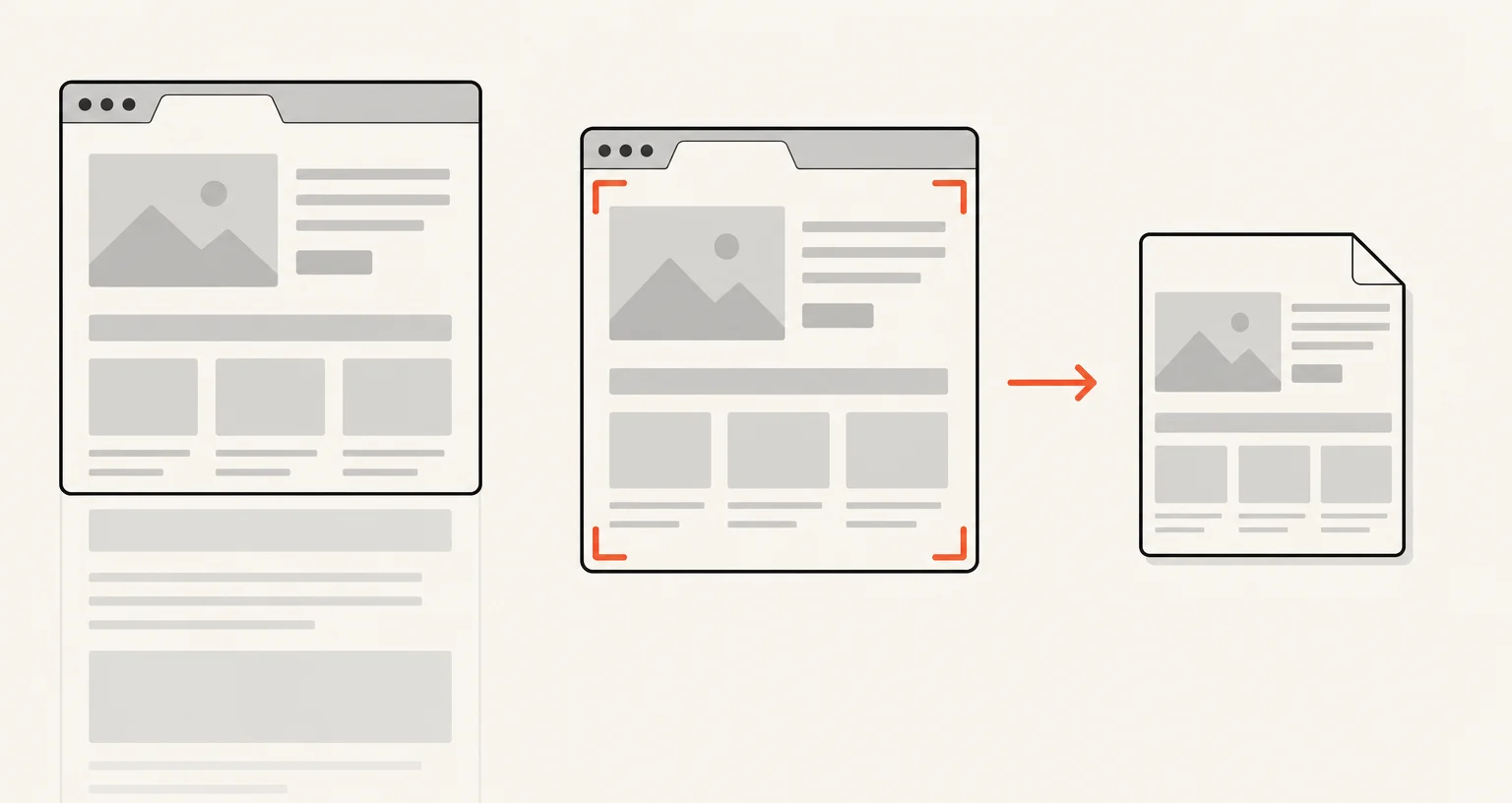
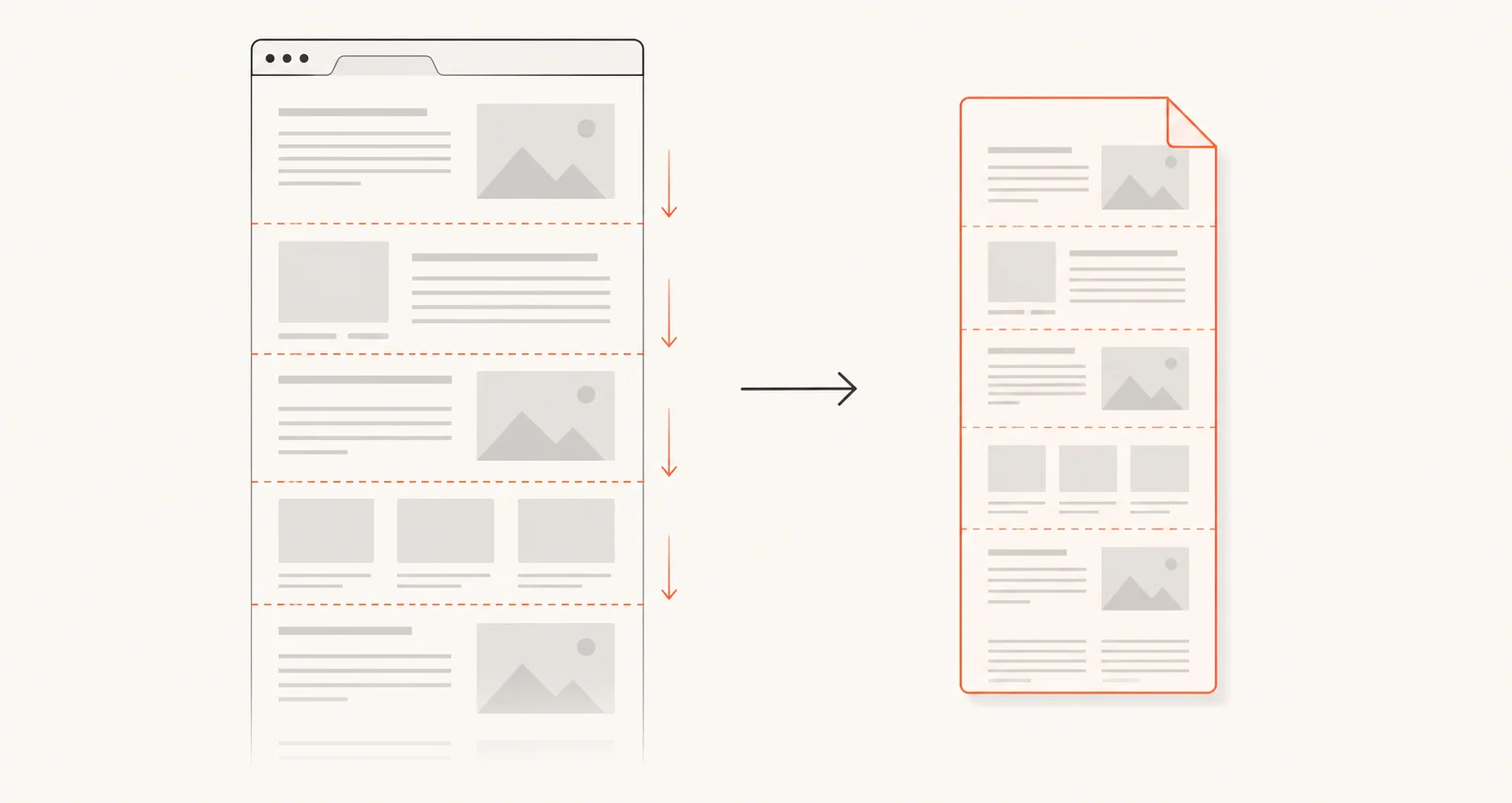
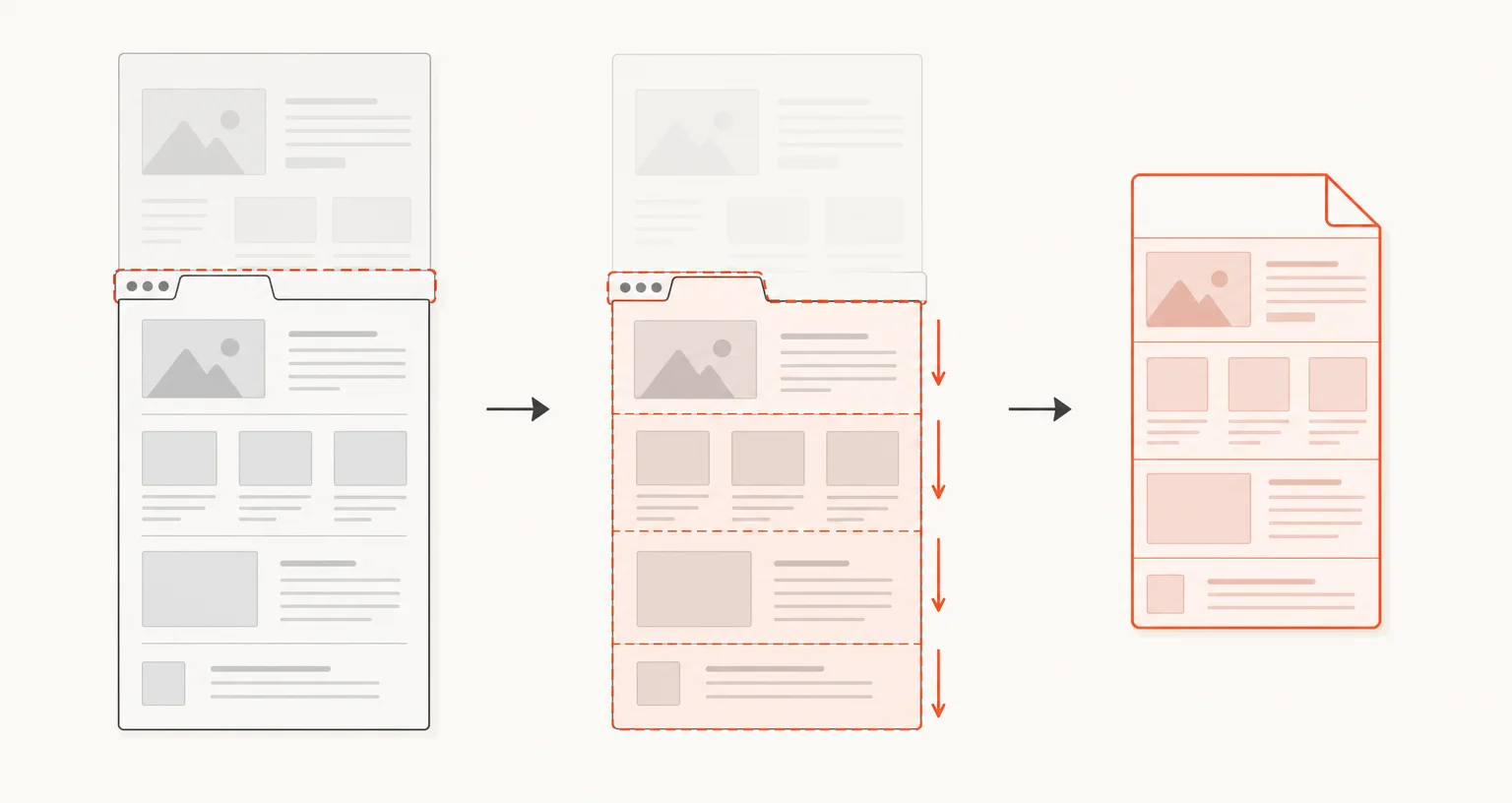
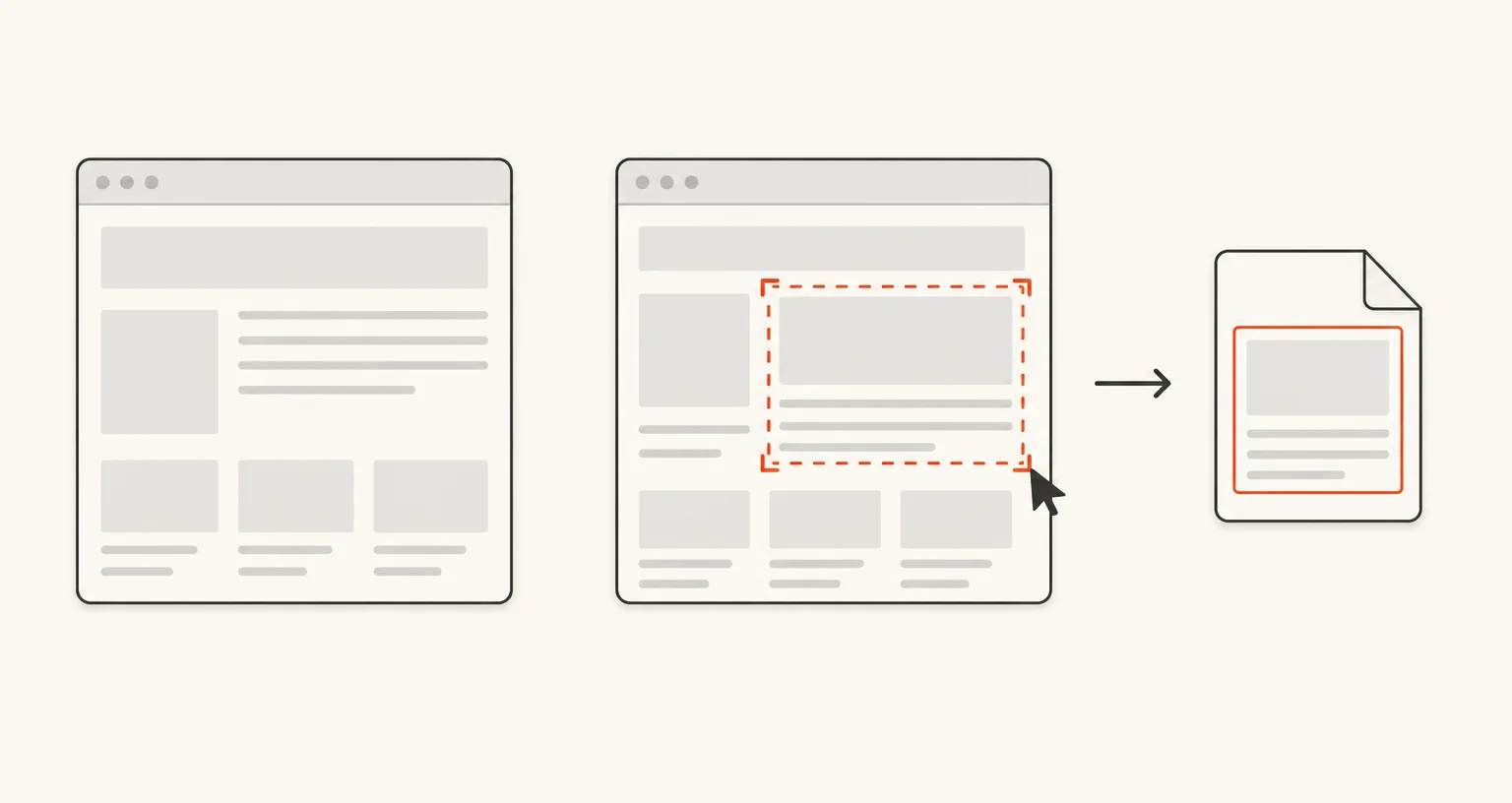
- Capture. One click. The whole page. Visible area, full page, or just the part you select.
- Annotate. Make your point impossible to miss. Arrows, text and numbered steps. Blur private details.
- Record. Explain it once. With a video. Record your screen, trim it, and export to MP4 or GIF.
- Organize. Every capture, right where you left it. A local history of your last 30 captures and recordings.
- Free
- No sign-up
- 9 capture modes
- Export PNG, JPEG, PDF, MP4, GIF, WebM
One extension instead of three
-
You need three different tools: one to capture, one to mark up, one to record.
Screenshot Suite does all three, free, in one extension.
-
Recording your screen often means creating an account first.
No account. Record your tab or your screen the moment you install it.
-
Free plans run out: a recording-length cap, a monthly quota, a watermark on export.
No cap, no watermark, no monthly quota, today.
-
Capturing a single video frame or the content inside an iframe usually isn't possible at all.
Screenshot Suite has a dedicated mode for each.
Which capture modes does Screenshot Suite have?
Nine modes, grouped by what you need. Pick one below to see it in action.
-
Capture a page
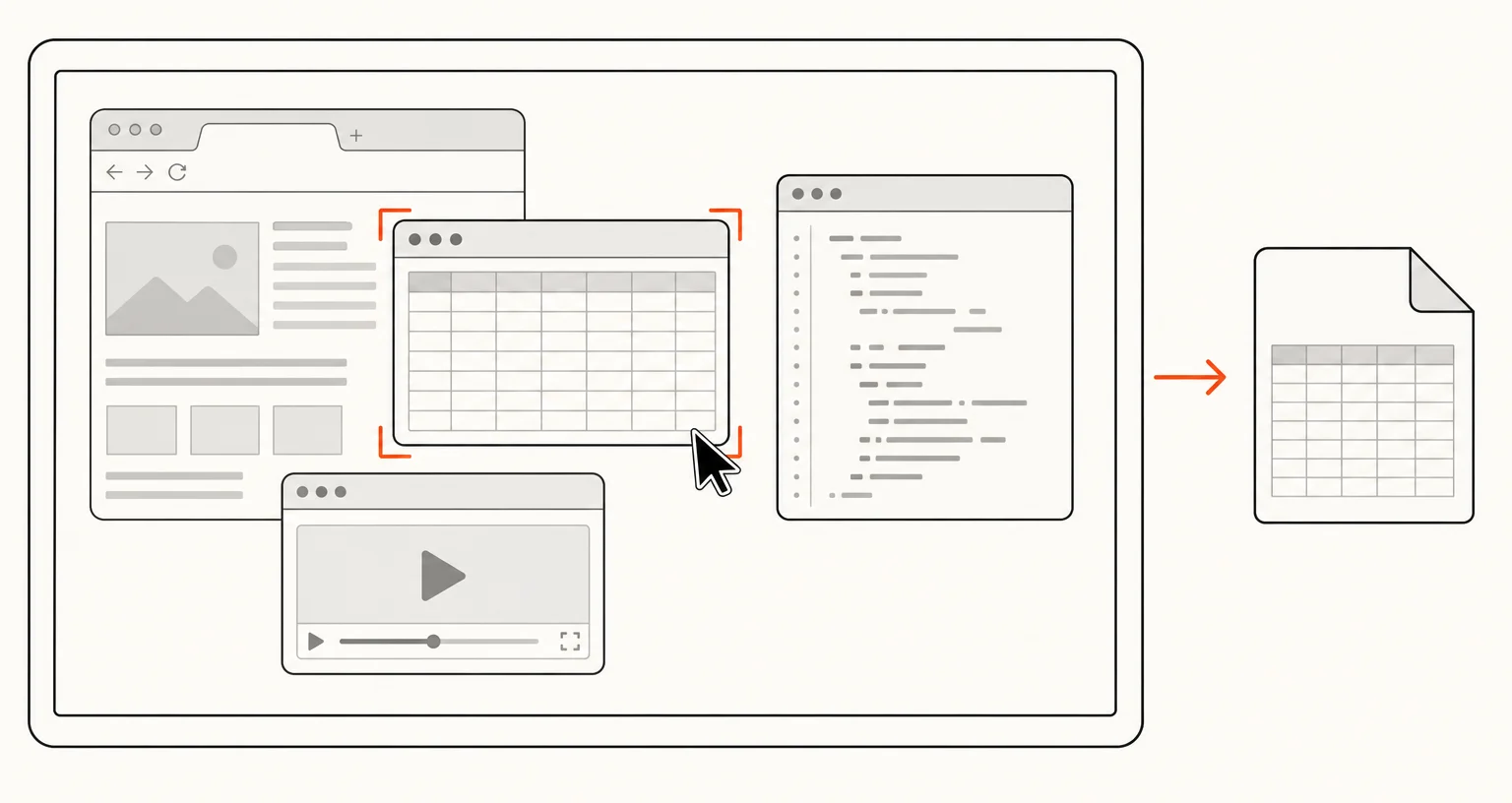
Visible area, Full page, Full page from here, Select an area
-
Capture what's embedded
Page frame (iframe), Video frame
-
Capture what's happening
Screen or window, Record tab, Record screen / window
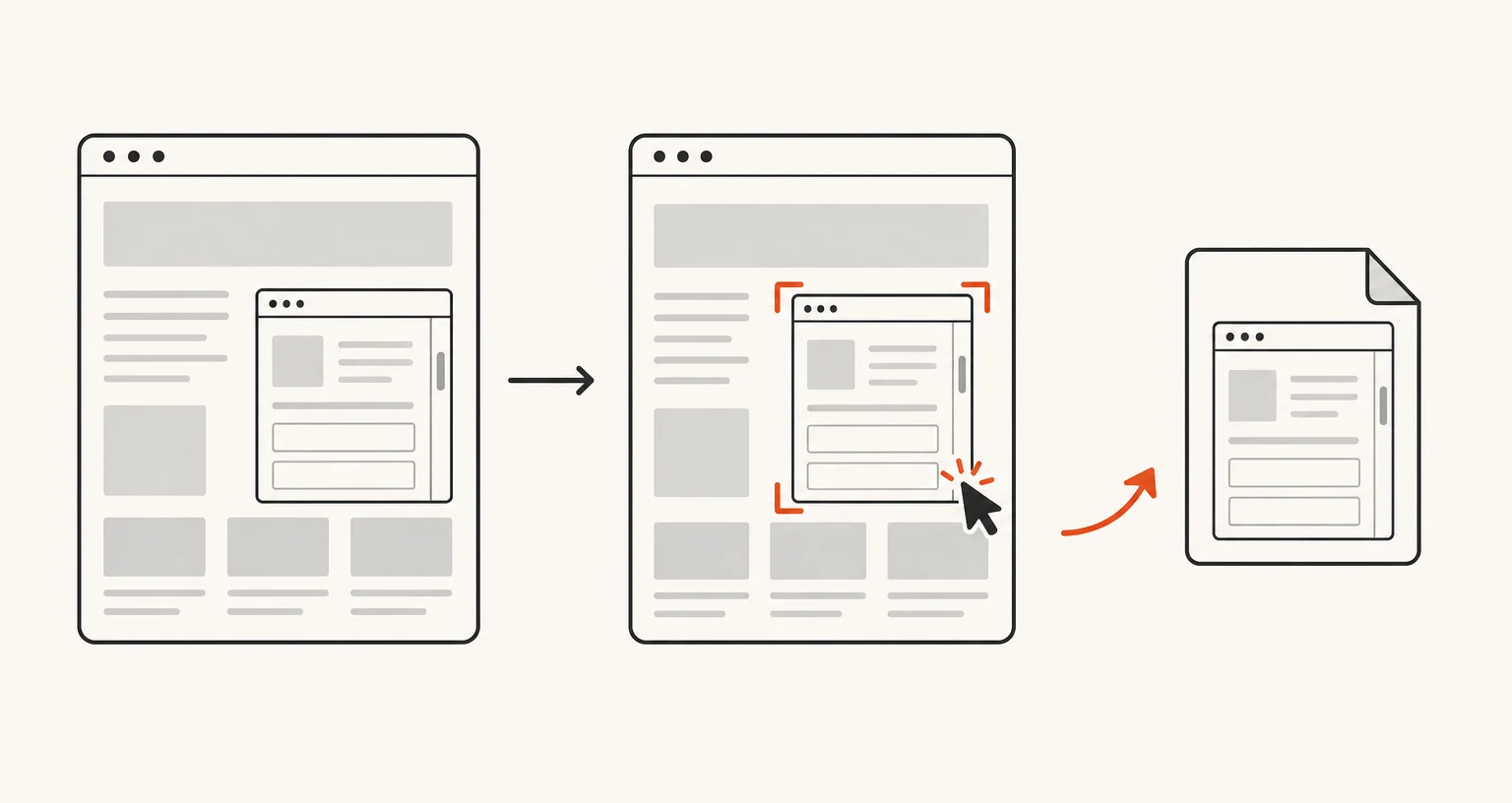
Page frame (iframe)
Captures an entire iframe, including cross-origin ones.
Read more: Page frame (iframe)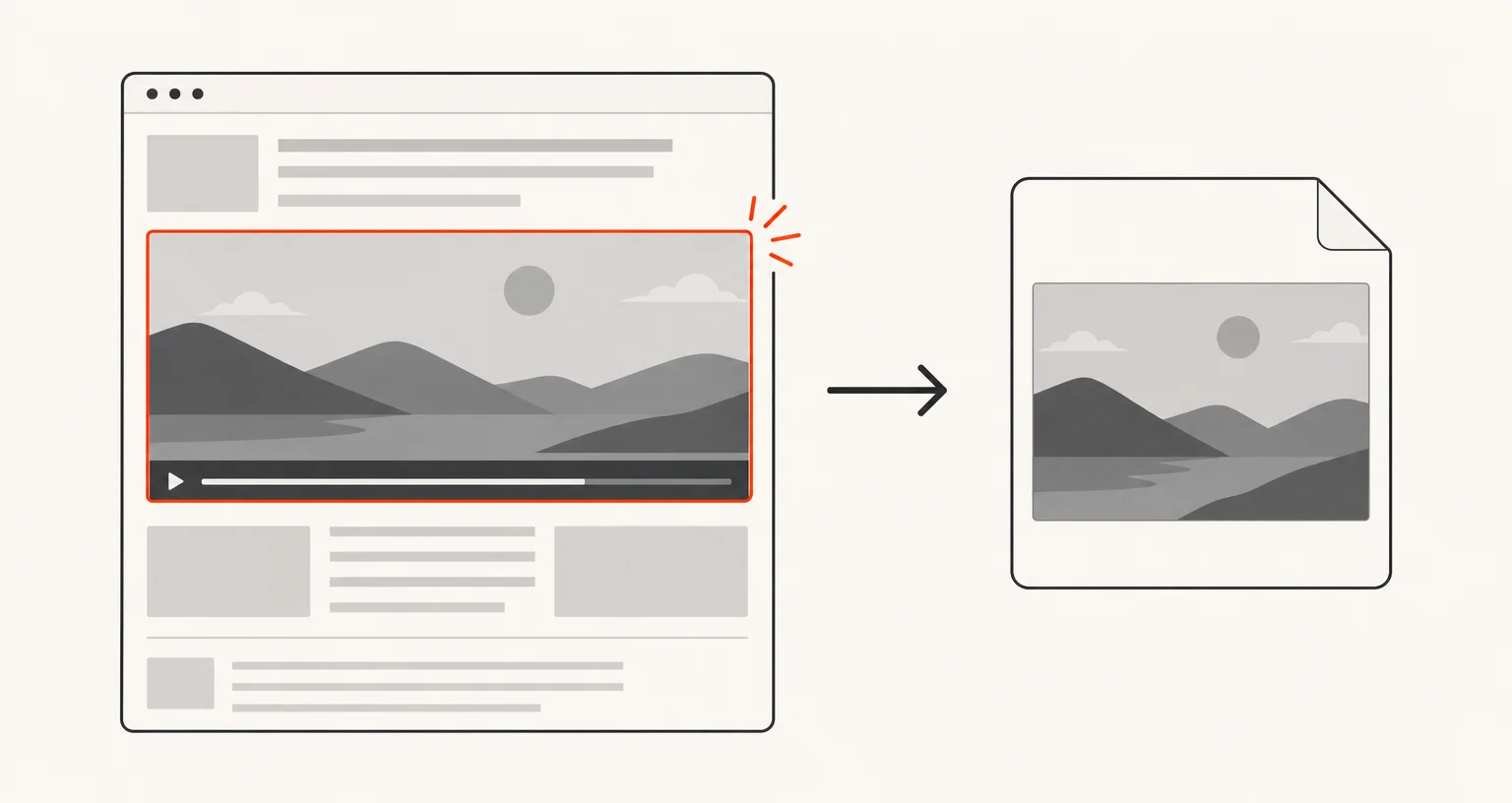
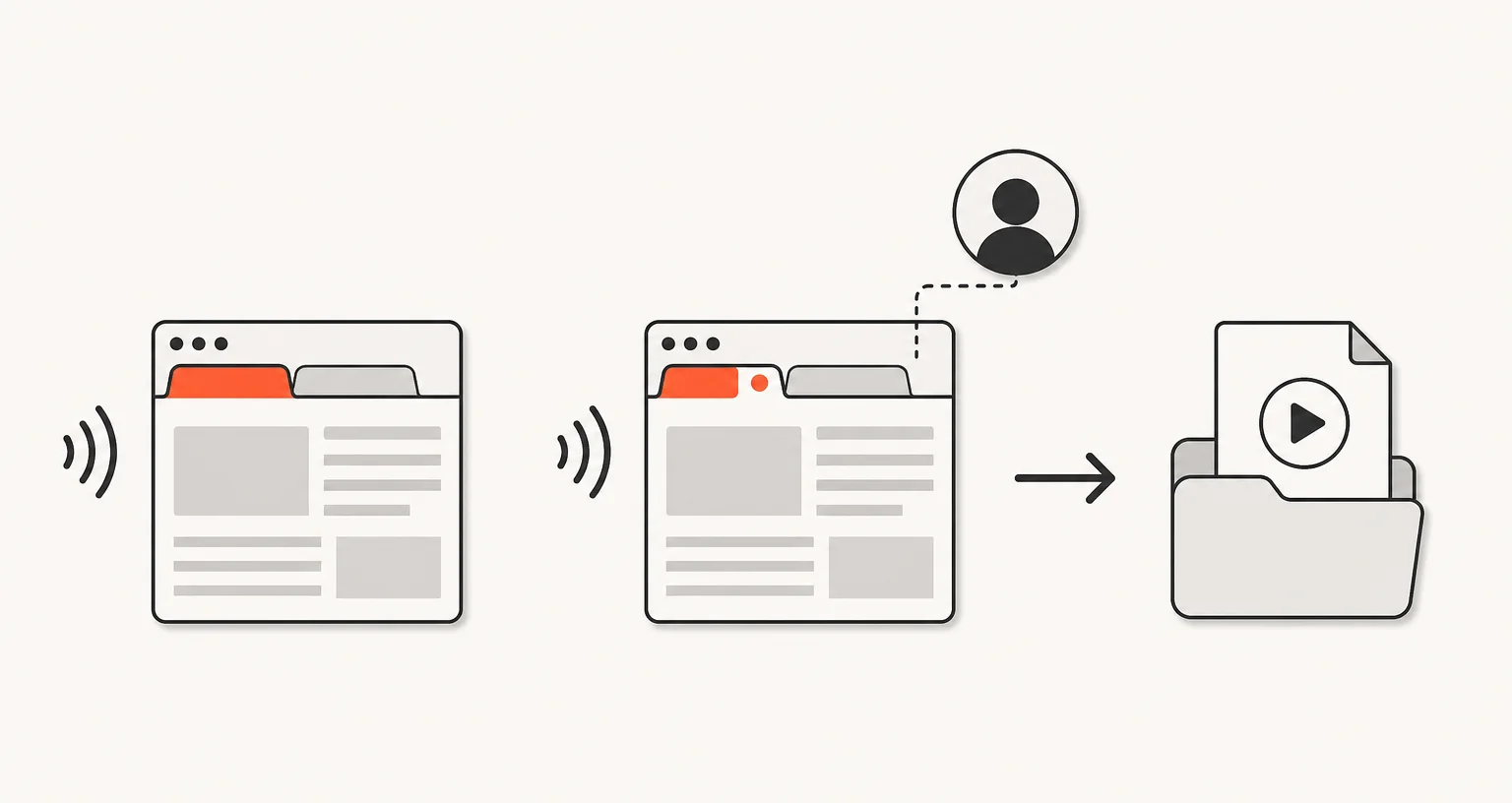
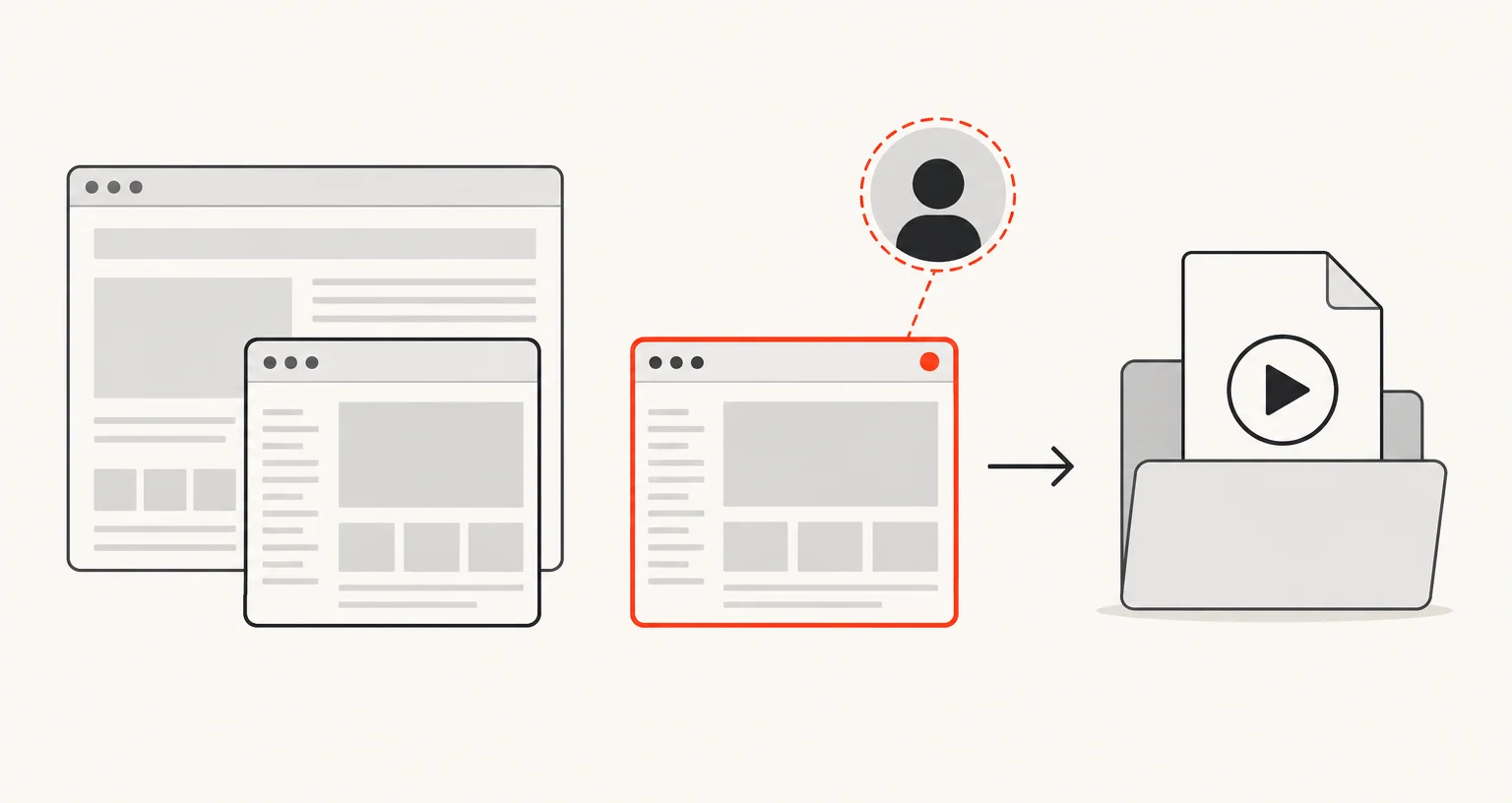
Record screen / window
Records your screen or a window, with an optional webcam bubble.
Read more: Record screen / windowHow it works
Three steps, whether you are capturing an image or recording a video.
Capture
-
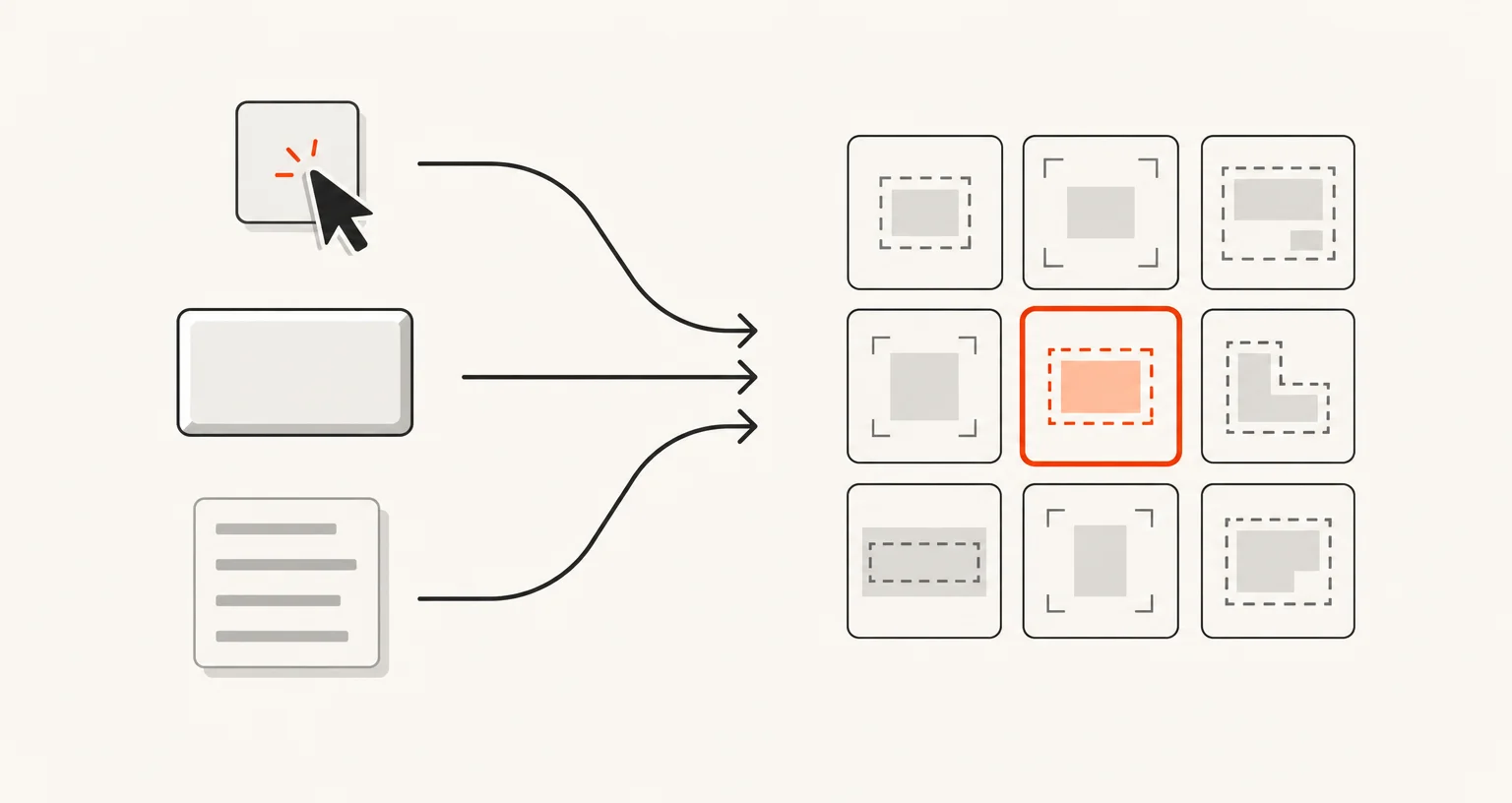
01
Pick a capture mode
Click the extension icon, use a keyboard shortcut, or right-click the page, then choose a mode.
-
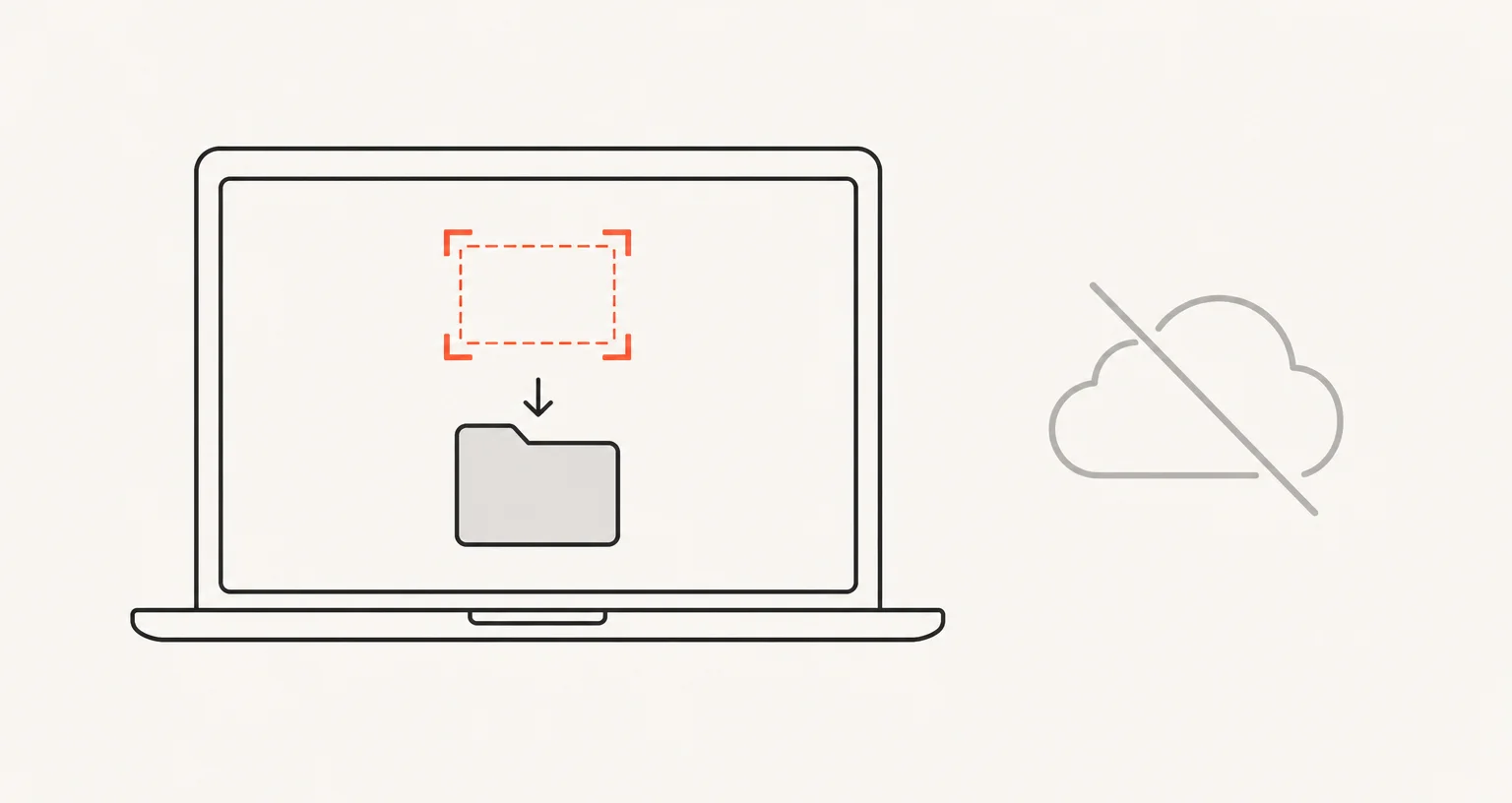
02
Screenshot Suite captures locally
The page is captured entirely inside your browser, instantly or by scrolling and assembling. Your capture is never sent anywhere.
-
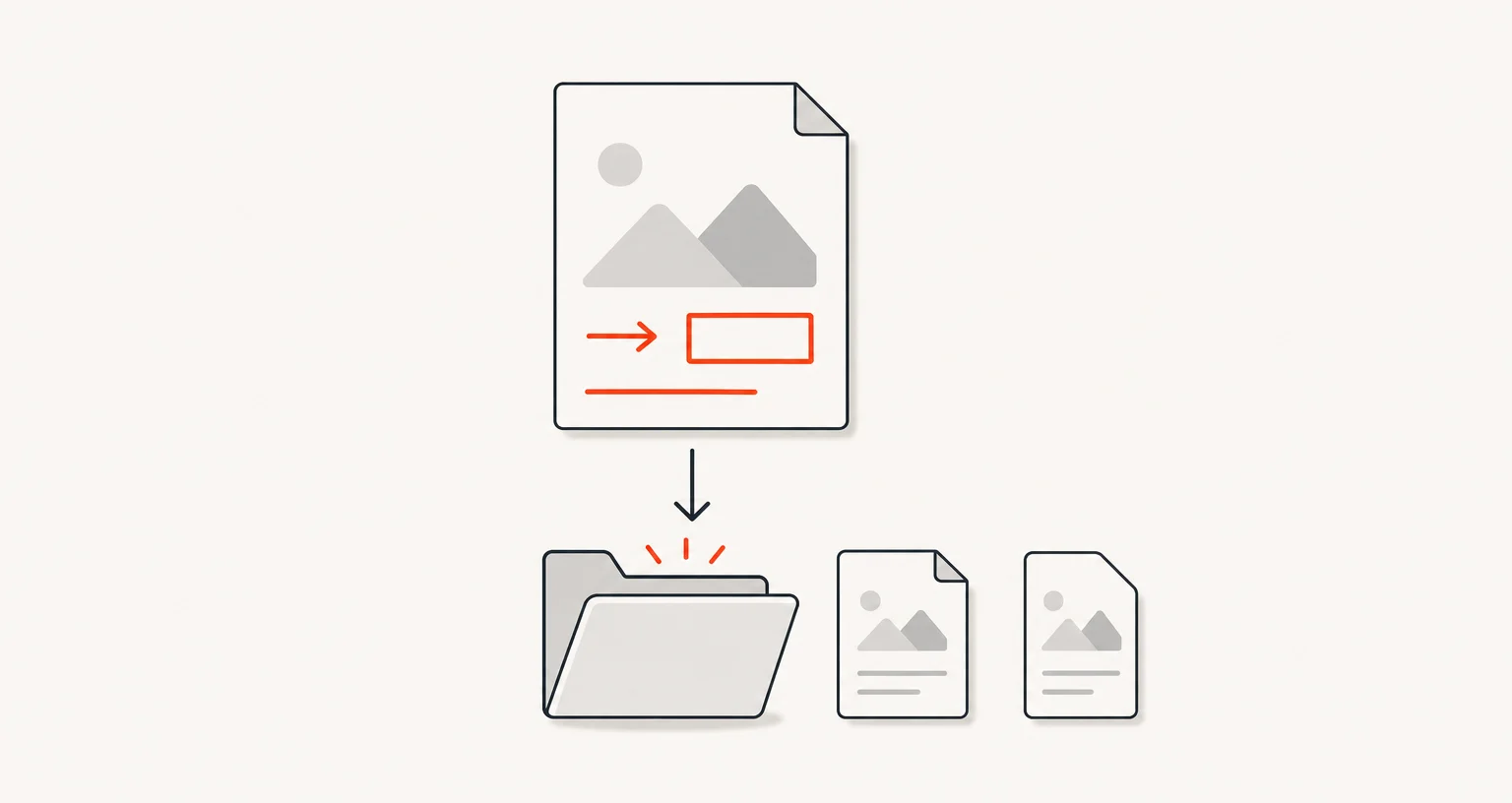
03
Annotate, then export
The capture opens in the editor for markup, then exports as an image or PDF, or copies to the clipboard.
Recording
-
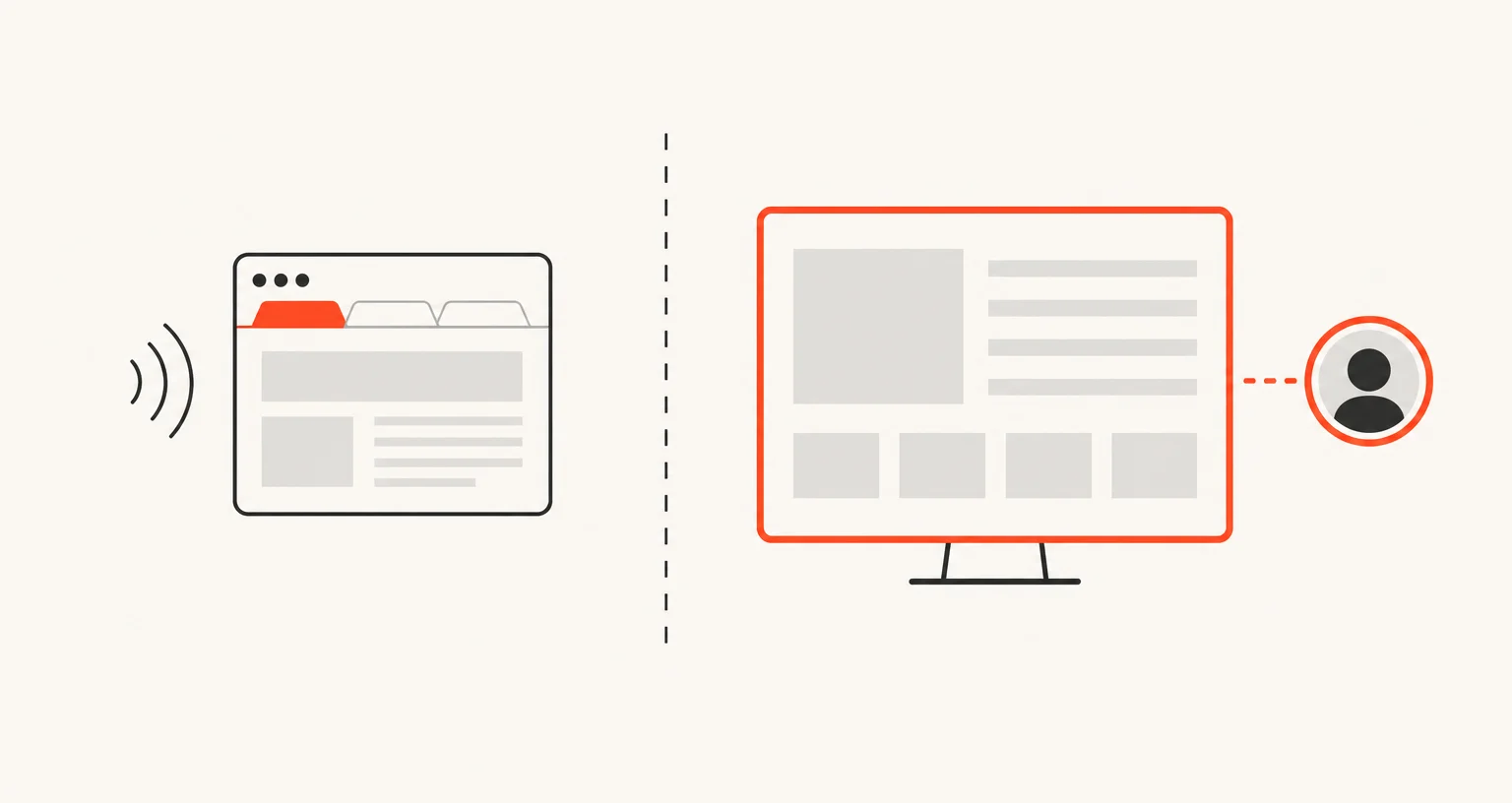
01
Pick what to record
Record the current tab with its audio, or your screen or a window, optionally with a webcam and microphone overlay.
-
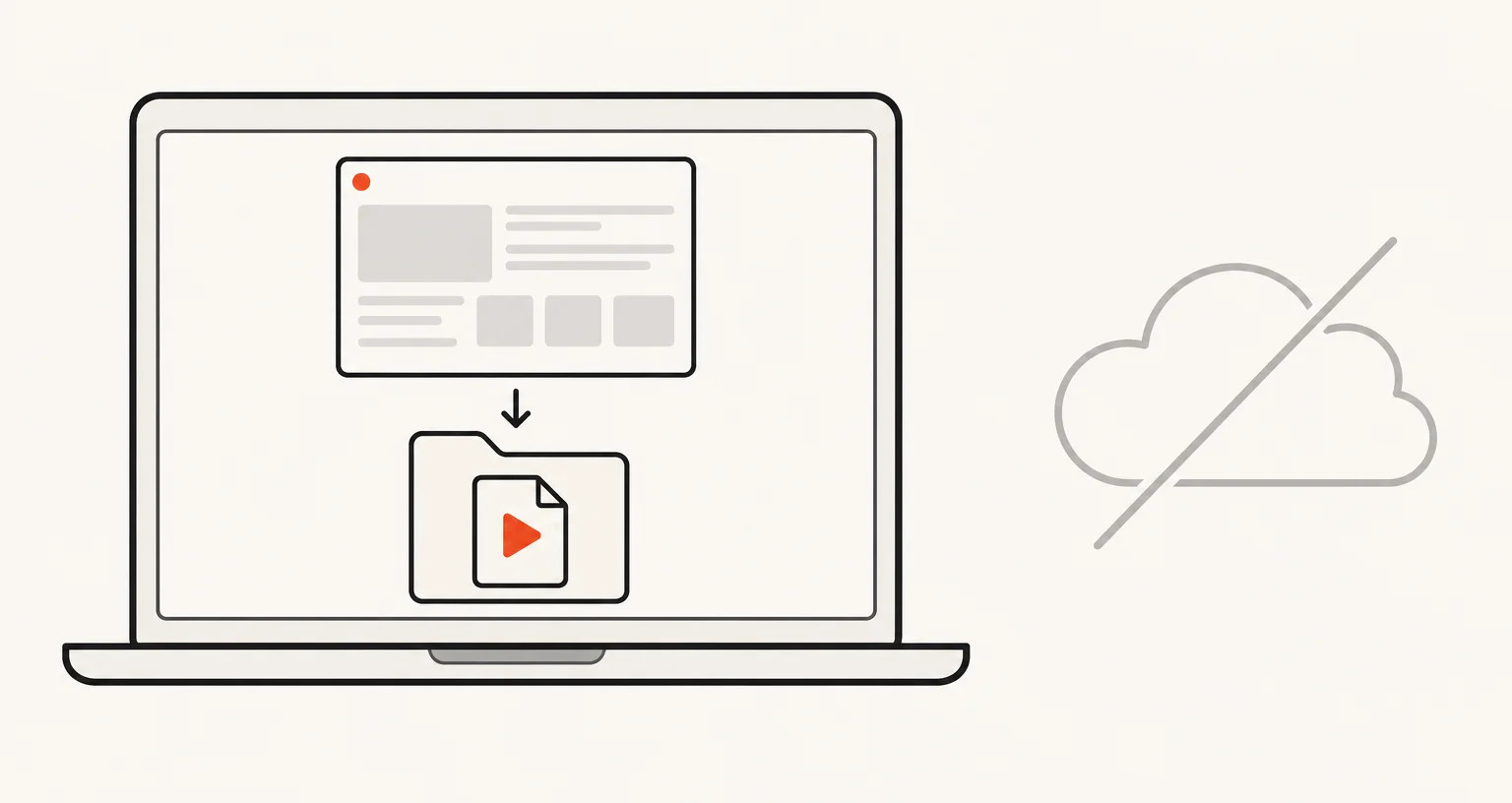
02
Screenshot Suite records locally
Recording happens inside your browser, at the quality you choose, up to 4K. Your recording is never sent anywhere.
-
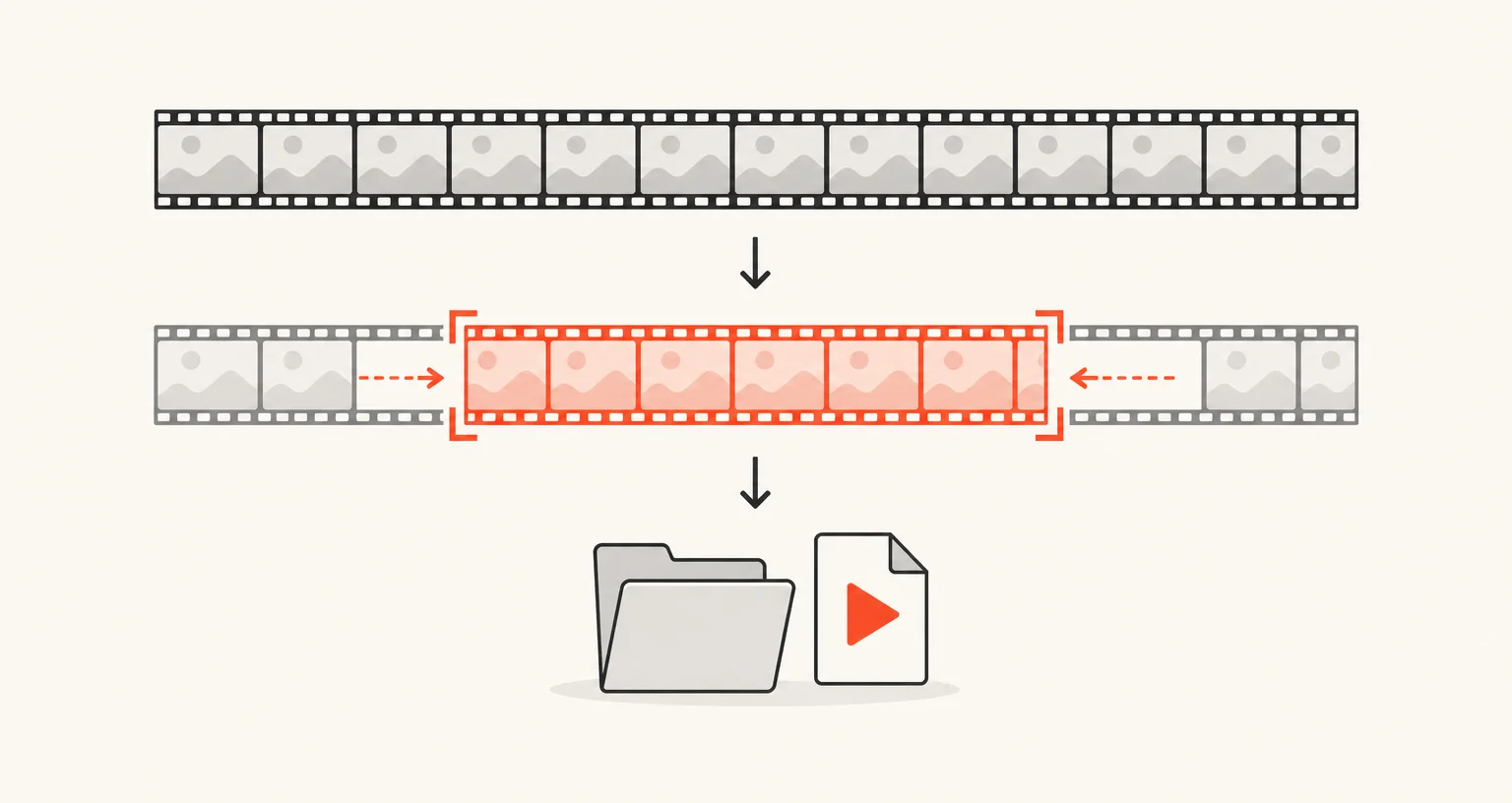
03
Trim, then export
The recording opens in the video editor to trim, then exports as WebM, MP4 or GIF, or downloads the original file.
Who it's for
Different jobs, the same nine modes.
What stays on your device?
Screenshot Suite processes everything locally: captures, recordings and edits never leave your browser.
- Screenshots, recordings and annotations are processed in your browser. The extension does not upload them.
- The last 30 items are kept in a local history that only you can open. Exports are ordinary files saved to your Downloads folder.
- Your settings (format, delay, options) may be synchronised by Chrome through your Google account. Captures never are.
Frequently asked questions about Screenshot Suite
Short, direct answers about what Screenshot Suite does, what it stores and what it does not do.
Add Screenshot Suite to Chrome
Everything happens in your browser. Your captures are never uploaded.