Annotating
How to blur sensitive information in a screenshot
Screenshot Suite's annotation editor has a blur tool and a pixelate tool. Drag either one over the part of the image you want to obscure, then export or copy the result, both work on any capture, in the same editor as every other annotation tool.
Published · Updated
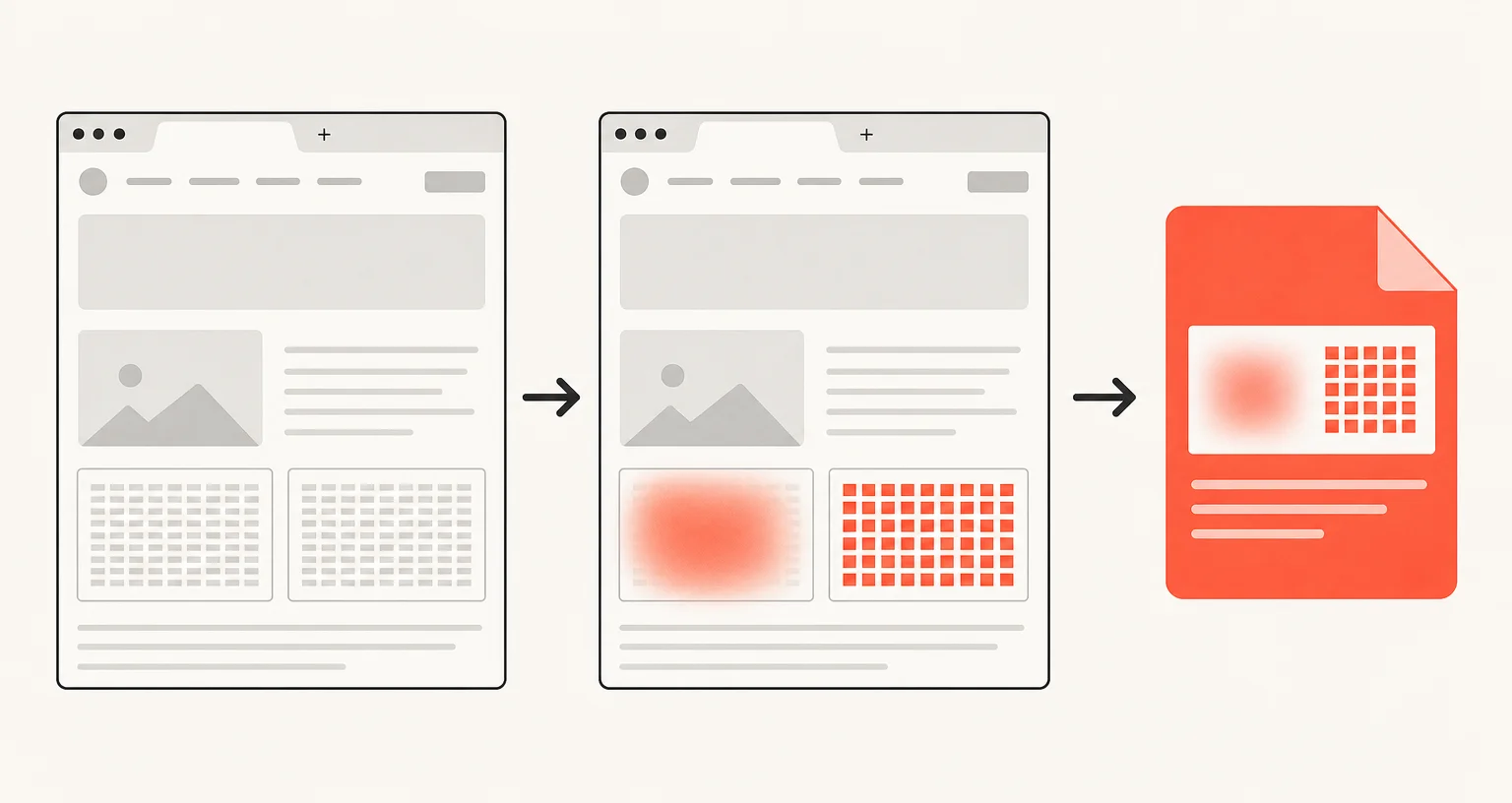
How do you blur or pixelate part of a screenshot?
Capture the page with any image mode, then in the annotation editor choose the blur or pixelate tool and drag it over the area you want to obscure: an account number, an email address, a name, anything that shouldn’t be visible once you share the result. Apply it to as many areas as needed, then export the image or copy it to the clipboard.
When should you use blur instead of pixelate?
Both obscure the same way: they make the underlying content unreadable to a casual viewer. Blur softens the area into an indistinct smudge; pixelate breaks it into visible blocks. Neither reveals more or less of the original by design. Pick whichever reads more clearly as “this was intentionally hidden” for your audience.
Is blurring or pixelating something guaranteed to hide it for good?
Be cautious here. No visual obscuring method (in any tool, not just this one) should be assumed forensically irreversible. Depending on how strong the effect is and what was underneath, blurred or pixelated content has, in some documented cases, been partially reconstructed with dedicated tools. That doesn’t mean blur and pixelate are useless (for casual sharing, they’re a real and effective way to keep incidental details out of a screenshot), but for something genuinely sensitive, like a full card number, a password, or a legal document, don’t treat a strong blur as equivalent to the information not being there at all.
What’s a safer option for very sensitive information?
Crop it out of the capture entirely, rather than covering it and sharing the image anyway. Select an area captures only the part of the page you actually need in the first place, and the editor’s own crop tool can narrow an existing capture down to just the safe part, discarding the rest. Either way, the sensitive content never exists in the exported file at all, unlike a blur or pixelate layer sitting on top of it.
Frequently asked questions
What's the difference between blur and pixelate?
Both obscure part of an image so the original content isn't readable at a glance: blur softens the area, pixelate breaks it into visible blocks. Which one to use is mostly a matter of preference.
Can a blurred or pixelated screenshot be reversed?
Treat it as possible, not impossible. Depending on how strong the effect is and what was underneath, some obscuring can be partially undone with dedicated tools. For anything highly sensitive, don't rely on blur alone.
What's a safer option for very sensitive information, like a full card number or a password?
Crop the sensitive part out of the capture entirely (with Select an area, or the editor's own crop tool) rather than covering it and sharing the image anyway.