Image capture
Screenshot of a selected area in Chrome
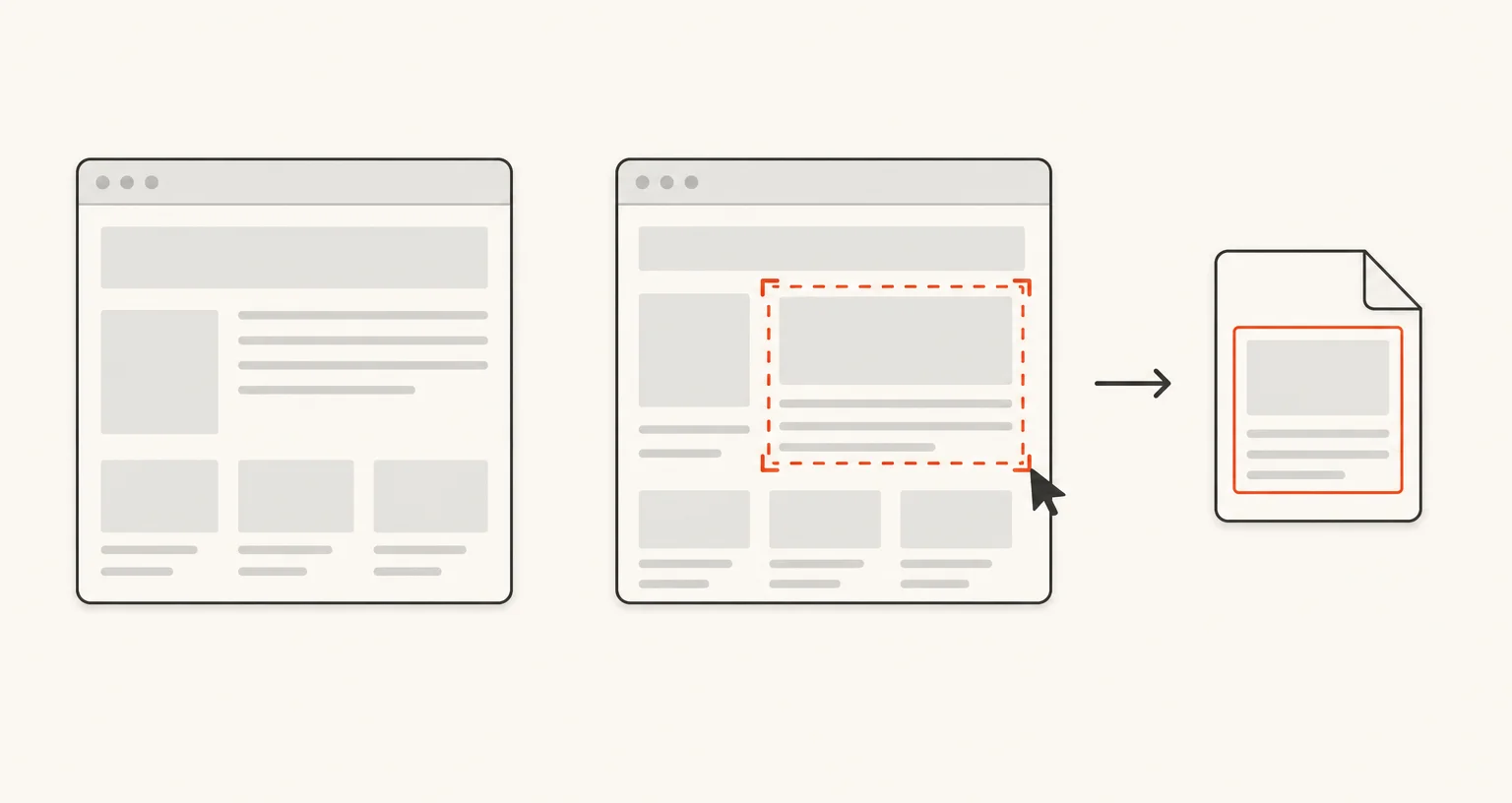
The Select an area mode lets you draw the rectangle you want directly on the page. Start it from the popup, press Alt+Shift+S, or use the right-click menu. Only the area you drew is captured and opened in the editor.
Published · Updated
How do you capture a selected area?
Start the mode from the popup, with Alt+Shift+S, or from the right-click menu of the page. Select an area is one of only two Screenshot Suite modes with both a keyboard shortcut and a menu entry, the other being Visible area. Once started, drag on the page to draw the rectangle you want. Screenshot Suite captures exactly that area and opens it in the annotation editor.
When should you use it instead of Visible area?
Visible area captures the entire viewport in one step; Select an area asks for one extra step (drawing the rectangle) in exchange for capturing only the part you actually need, useful for cropping out a sidebar, ads, or anything else around the content you want. The two work differently under the hood, too: Visible area is a single, one-shot capture, while Select an area shares Full page’s scroll-and-stitch engine. If the rectangle you draw turns out larger than what fits on screen, Screenshot Suite scrolls through it in slices and stitches the result together, exactly like a full-page capture.
What happens after the capture, and what are the limits?
The image opens in the editor with the same Settings as every image mode: PNG or JPEG, PDF export or clipboard copy, auto-download, preview, URL and date stamp, 50% downscale for high-density screens, and a delay of 0, 3, 5 or 10 seconds before the capture fires, handy for selecting an area just before a menu or tooltip you want included disappears. Because a large selection uses the same scroll-and-stitch engine as Full page, the same browser canvas limits apply: 32,767 pixels on a side, or about 268 million pixels in total. Like every mode, Select an area cannot run on Chrome’s own internal pages (chrome://...) or the Chrome Web Store. If the shortcut does nothing, check chrome://extensions/shortcuts for a conflict with another extension.
What if the page has frames?
To capture one whole frame (an iframe) rather than a rectangle you draw, use Page frame (iframe).
Frequently asked questions
Can I change the Alt+Shift+S shortcut?
Yes. Chrome lets you reassign any extension's shortcuts on chrome://extensions/shortcuts, including both of Screenshot Suite's (Select an area and Visible area).
What if I want a whole iframe, not a rectangle I draw?
Use Page frame (iframe) instead, which captures an entire iframe on the page, including cross-origin ones, rather than a region you draw by hand.
Can I select an area that's larger than what fits on my screen?
Yes. Select an area shares the same scroll-and-stitch engine as Full page, a selection taller or wider than the viewport is still captured in full, scrolling through it the same way, up to the same size limits (32,767 pixels on a side, about 268 million pixels total).