Capturing
How to take a full page screenshot in Chrome
Chrome's own DevTools has a command that captures a full page with no extension, but it saves a plain PNG with no editing. Screenshot Suite's Full page mode does the same scroll-and-stitch capture from a single click in the toolbar, then opens the result in an editor and exports PNG, JPEG or PDF.
Published · Updated
How do you take a full page screenshot with Chrome’s own DevTools?
Press Ctrl+Shift+I (Cmd+Option+I on Mac) to open DevTools, then Ctrl+Shift+P (Cmd+Shift+P on Mac) to open the Command Menu, and type “screenshot”. Choose Capture full size screenshot, and Chrome scrolls through the page and saves a PNG of the whole thing, no extension needed. The trade-off: the result is a plain PNG with no annotation, no other export format, and the feature lives several clicks deep inside a developer tool most people never open.
How does Screenshot Suite capture a full page?
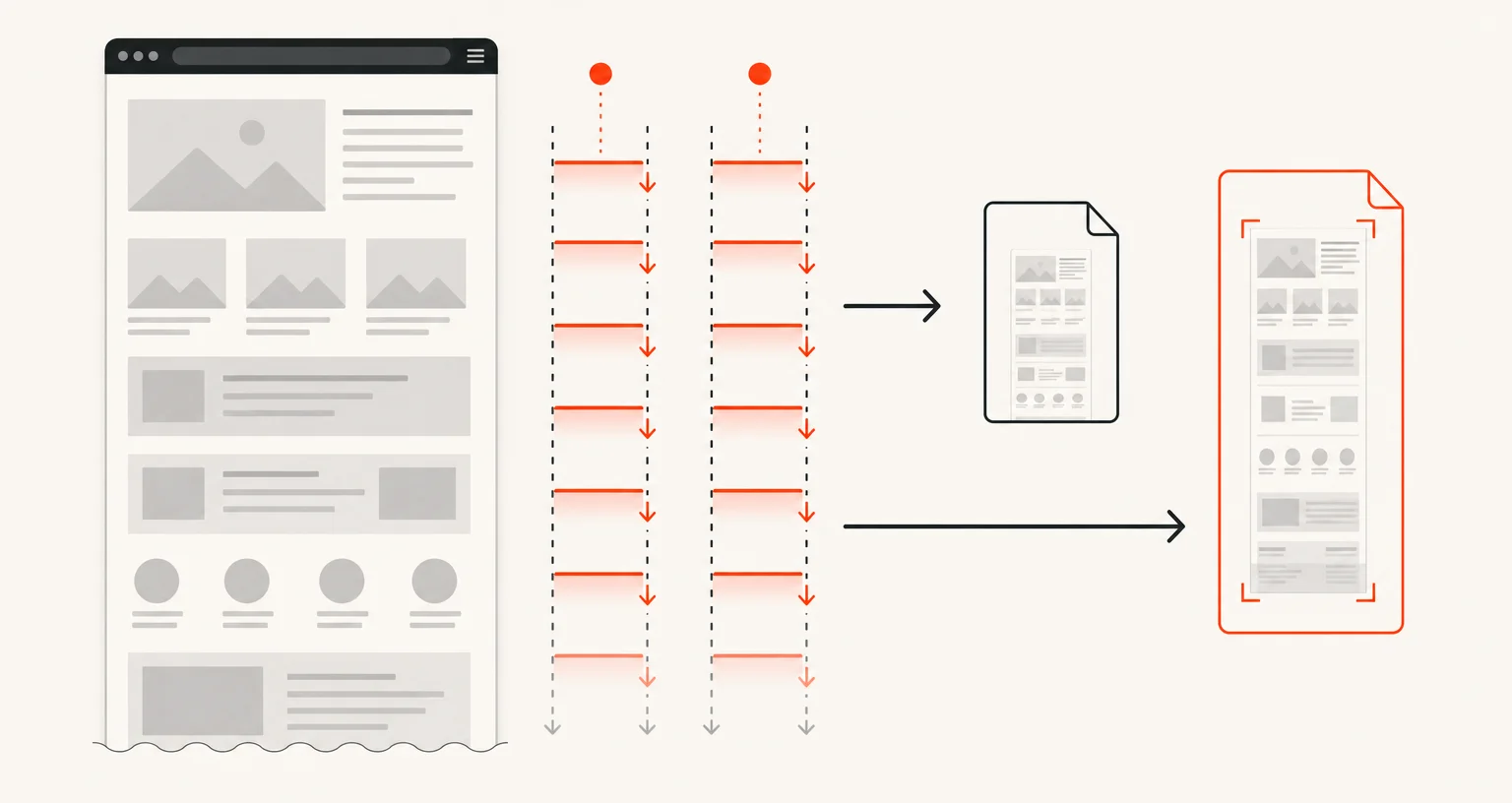
Open the popup and choose Full page. Screenshot Suite scrolls through the page one screen at a time, waiting up to 1.5 seconds per screen for lazy-loaded images to appear, and stitches the slices together on a canvas in your browser, the same kind of scroll-and-stitch approach as the DevTools command, but reachable with one click from the toolbar. Cross-origin iframes on the page are composited into the result too.
What do you get beyond a plain PNG?
The captured image opens directly in an annotation editor, where you can mark it up before exporting PNG, JPEG, or PDF (split automatically into A4 pages if the capture is very long), or copy it straight to the clipboard.
What real limits apply either way?
A browser canvas can’t exceed 32,767 pixels on a side or about 268 million pixels in total, regardless of which method captures it. Screenshot Suite checks the estimated size before starting and stops immediately with a clear message if a page is too large, rather than failing after a long wait. Full page from here or Select an area on a smaller section usually gets the result you need instead. Pages with a sticky or fixed header, or very aggressive lazy-loading, are handled on a best-effort basis either way: a sticky element can repeat in the stitched result, and an image that hasn’t finished loading in time may show up blank.
Frequently asked questions
Does Chrome have a built-in full-page screenshot feature?
Yes. DevTools' Command Menu (Ctrl+Shift+I, then Ctrl+Shift+P, then type "screenshot") includes a "Capture full size screenshot" command. It needs no extension.
Why use an extension instead of the built-in DevTools command?
The DevTools command saves a plain PNG with no editing and no other export format. Screenshot Suite adds a one-click toolbar button, an annotation editor, and PNG, JPEG or PDF export from the same capture.
What happens if the page is too large to capture in one image?
A browser canvas can't exceed 32,767 pixels on a side or about 268 million pixels in total, a limit that applies either way. Screenshot Suite checks the estimated size first and tells you immediately if a page is too large, rather than failing after a long wait; Full page from here or Select an area work on a smaller section instead.