Capturing
Every way to take a screenshot in Chrome
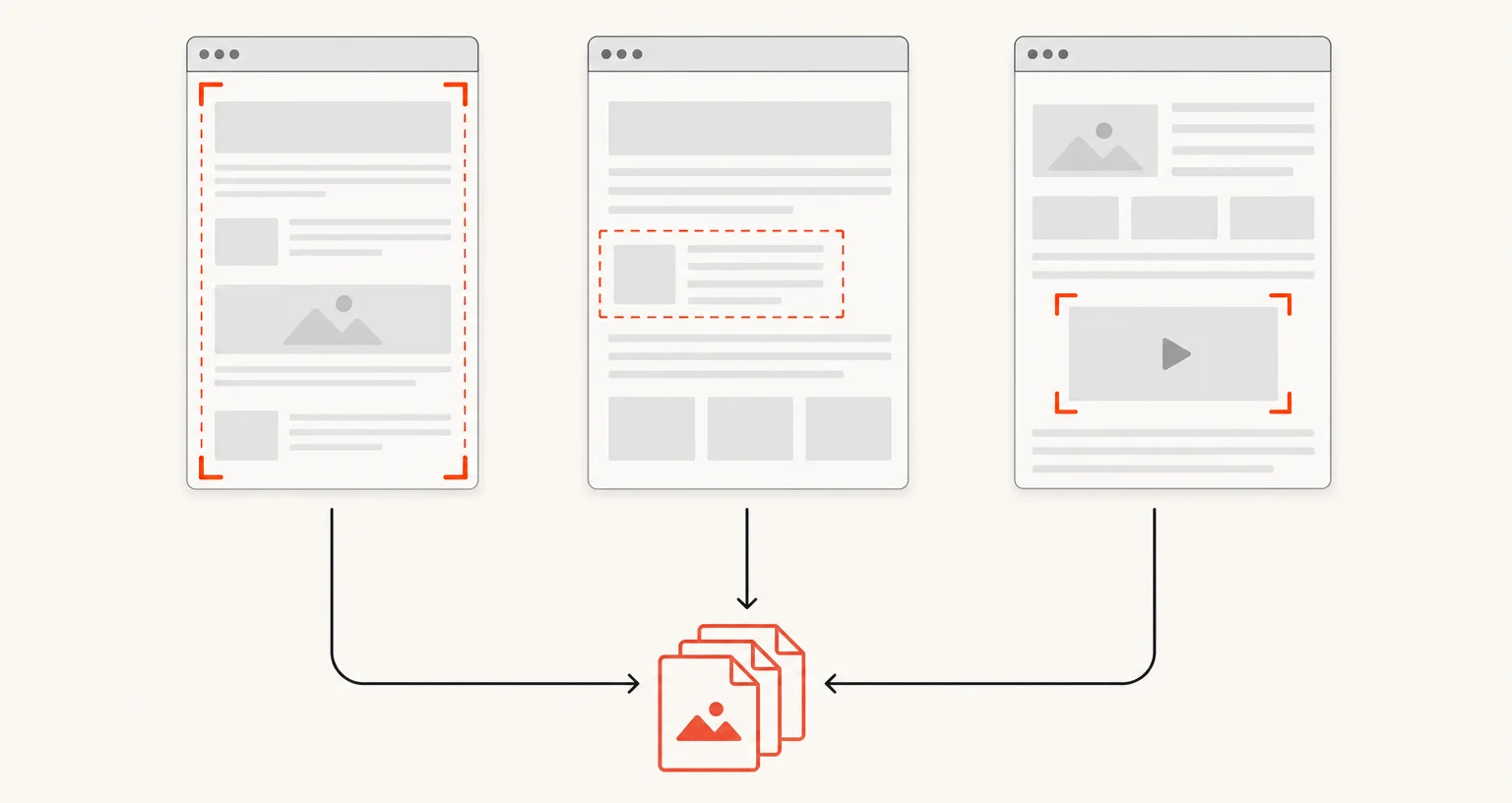
Chrome itself offers OS-level shortcuts and a DevTools command for a basic screenshot, with no annotation or extra export formats. Screenshot Suite adds 7 distinct capture modes from one popup (the visible area, a full page, from your current scroll position, a selected region, an embedded frame, a single video frame, or the whole screen), each opening in an annotation editor.
Published · Updated
What are Chrome’s own screenshot options, without an extension?
Chrome doesn’t ship a screenshot feature of its own, but two native paths exist: an operating-system shortcut (different on Windows, Mac and Chromebook, see Chrome screenshot keyboard shortcuts for the exact combinations) and a command inside DevTools’ Command Menu (covered in detail in how to take a full page screenshot in Chrome). Both save a plain image file with no annotation and no choice of export format.
What are the 7 image capture modes in Screenshot Suite?
- Visible area: exactly what’s on screen in the current tab, one click or Alt+Shift+X.
- Full page: scrolls and stitches the whole page from top to bottom.
- Full page from here: the same engine, starting wherever you’re already scrolled to.
- Select an area: draw the exact rectangle you want, one click or Alt+Shift+S.
- Page frame (iframe): a whole embedded iframe, including cross-origin ones.
- Video frame: the current image of an HTML5 video, at its own resolution.
- Screen or window: your whole screen or one window or application, using Chrome’s own picker.
Which method should you use?
If it’s already fully on screen, Visible area is the direct option. If the page is taller than your screen, Full page (from the top) or Full page from here (skipping what’s above you) covers it. If you only need part of what’s visible, Select an area crops to just that. For an embedded dashboard or widget, Page frame (iframe) reaches the whole thing; for a specific moment in a video, Video frame grabs that frame alone. For anything outside the browser entirely (another application, your full desktop), Screen or window is the mode built for that.
What if a capture doesn’t work the way you expect?
See Screenshot extension not working for the specific causes behind the most common issues: a page Chrome blocks every extension from reading, a shortcut conflict, or a page too large for the browser’s own size limits.
Frequently asked questions
Does Chrome have its own screenshot shortcut?
Not a built-in one of its own. See the full breakdown of OS-level shortcuts and DevTools' screenshot commands.
How many screenshot modes does Screenshot Suite have?
Seven for still images, plus two more for video recording.
Which mode captures an entire webpage, not just what's on screen?
Full page, which scrolls and stitches the whole page together. Full page from here does the same thing starting partway down instead of from the top.