Recording
How to record a Chrome tab with sound
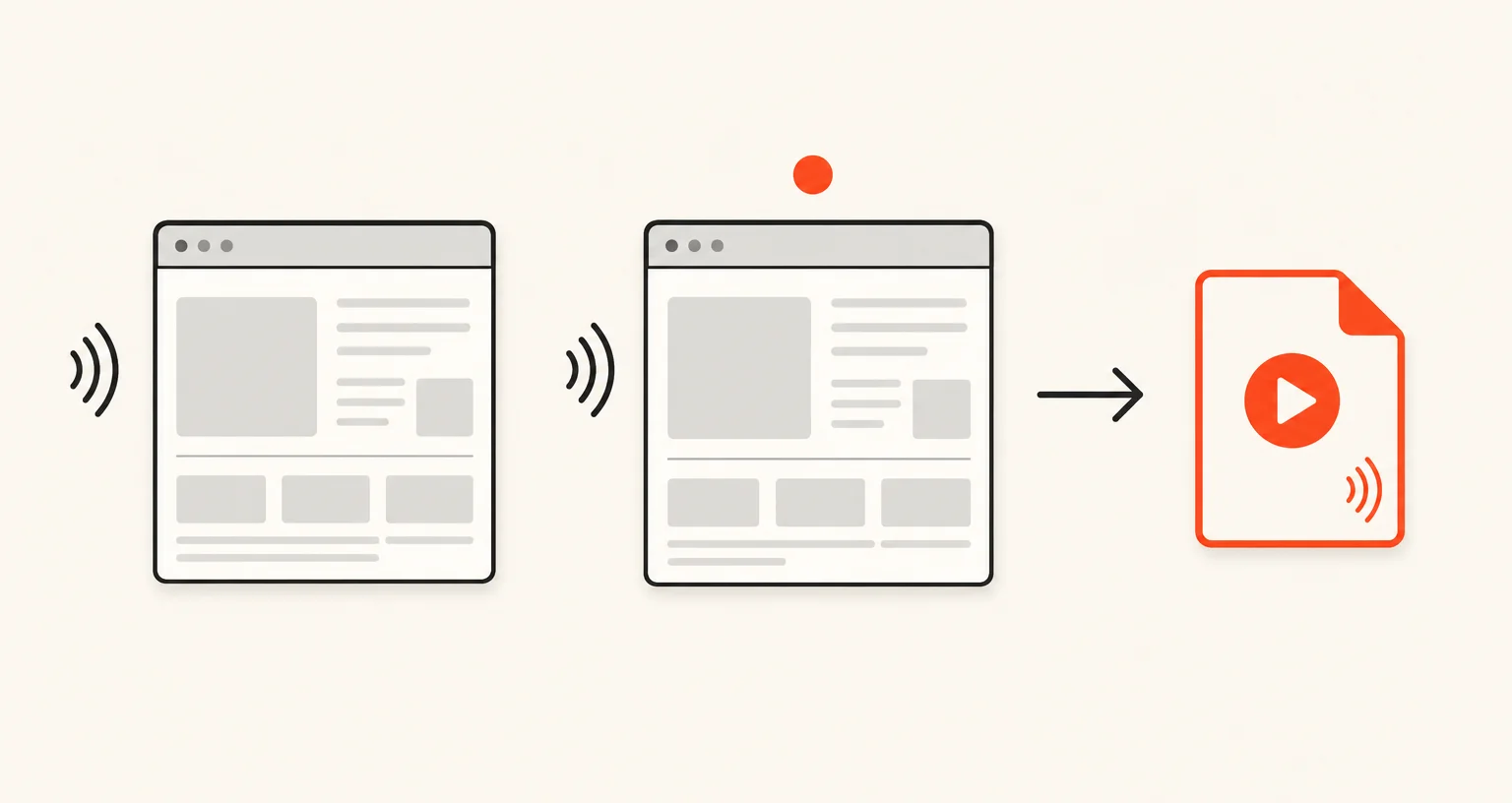
Chrome doesn't have a built-in way to record a browser tab with its own audio. Screenshot Suite's Record tab mode does it from the popup: start, do whatever you need to show, stop, and the recording opens in an editor to trim and export as WebM, MP4 or GIF.
Published · Updated
How do you record a tab with its sound in Chrome?
Open the Screenshot Suite popup, switch to its Recording tab, and choose Record tab. A panel with a timer confirms recording is on: do whatever you need to show in that tab, then click Stop in the popup. The recording opens in the video editor, ready to trim and export. There’s no keyboard shortcut or right-click entry for this mode; it starts and stops from the popup only.
Do you need a separate tool to capture tab audio?
No, and there isn’t a built-in Chrome feature that does this either way. Unlike full-page screenshots, where Chrome’s own DevTools has a partial native command, Chrome has no equivalent for recording a tab’s picture and sound together: this is a case where reaching for an extension adds something the browser itself doesn’t offer.
Can you add narration or your face to the recording?
Turn on the webcam overlay before starting: a round bubble is added to the recording and your microphone is captured along with it. While the bubble is on, a floating pencil button also lets you draw a single red freehand line directly onto the recording, fading out after 3 seconds: useful for pointing at something on screen as you talk, without stopping to switch tools.
What can you export the recording as, and at what quality?
Trim the recording in the editor, then download the original WebM, export a trimmed WebM, export MP4 (H.264, with AAC audio when the recording has sound), or export a GIF of up to 15 seconds at 10 frames per second. Before recording, cap the resolution at 720p, 1080p or 4K, or leave it on Auto for the native resolution. A smaller source is never enlarged.
Frequently asked questions
Does Chrome have a built-in way to record a tab?
No. There's no native Chrome feature for recording a browser tab, with or without its sound. This is one of the areas where an extension adds something Chrome itself doesn't have.
Does Record tab capture the tab's audio?
Yes: whatever plays in that tab, a video, a call, background music, is recorded along with the picture.
Can I add my webcam and voice to the recording?
Yes. Turn on the webcam overlay before you start; a round bubble is added to the recording and your microphone is captured with it.
What can I export the recording as?
The original WebM, a trimmed WebM, MP4 (H.264), or a GIF of up to 15 seconds at 10 frames per second.