Video recording
Record a Chrome tab as video
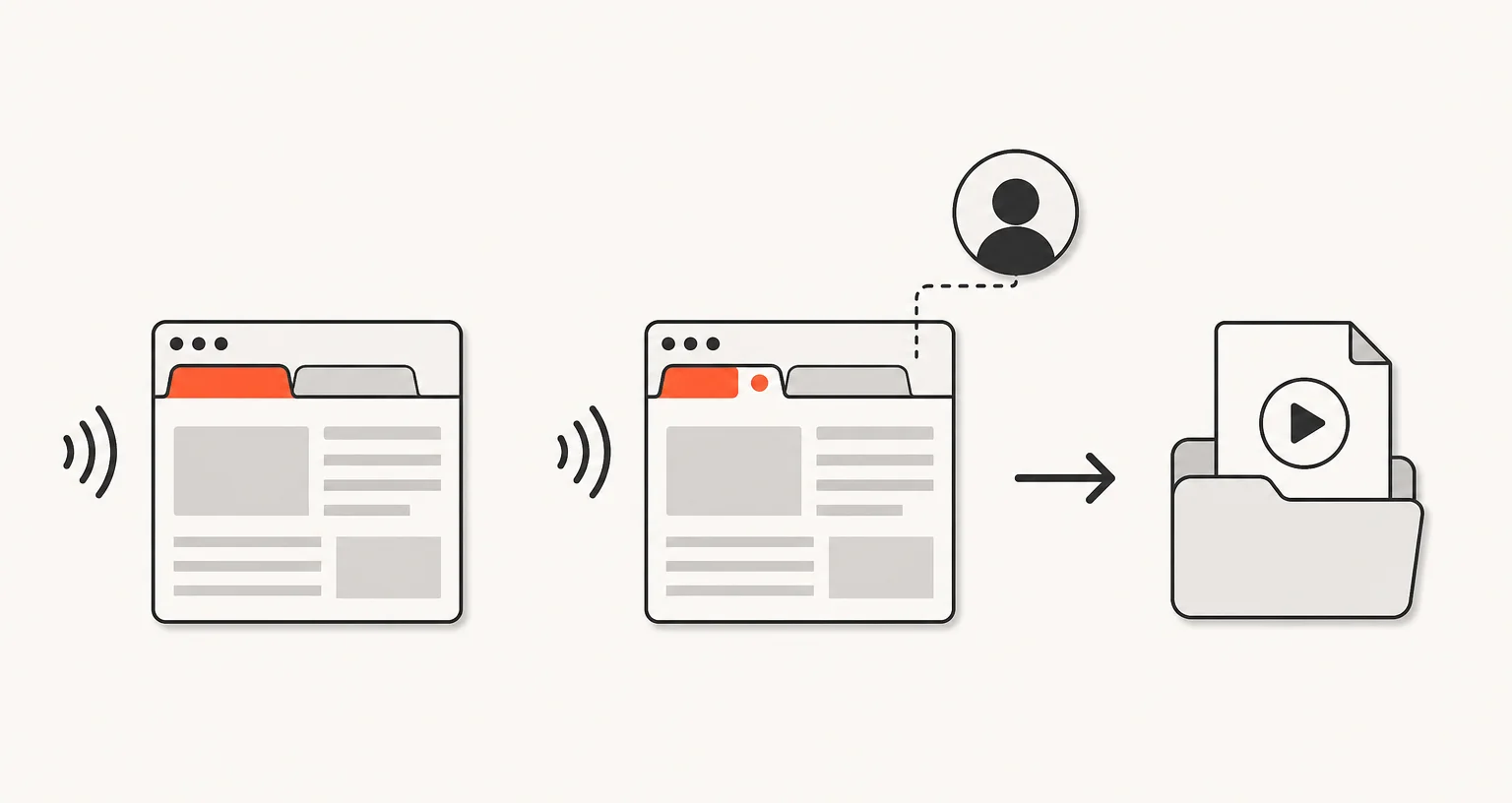
The Record tab mode records the current Chrome tab, with its sound. When you stop, the video opens in an editor where you can trim it and export WebM, MP4 or GIF. Nothing is uploaded.
Published · Updated
How do you record a tab?
Open the Recording tab of the popup and choose Record tab. A panel with a timer shows that recording is on. Click Stop in the popup when you’re done, and the recording opens in the video editor. There’s no keyboard shortcut or right-click menu entry for this mode: it starts and stops from the popup only.
Can you add your webcam, and draw on the recording?
Yes to both, together. Turn on the webcam overlay before you start: a round bubble appears in the recording and your microphone is recorded with it. The first time, Chrome asks for camera and microphone access in a small dedicated tab. While the webcam bubble is on, a floating pencil button also lets you draw directly on the recording: one red freehand stroke at a time, fading out after 3 seconds, burned into the video as you draw it. This drawing tool is specific to a tab recording with the webcam on; it isn’t part of Record screen / window, and the video editor itself has no annotation tools of its own, trimming and export only.
When should you use it instead of Record screen / window?
Record tab is scoped to one browser tab and keeps that tab’s own sound: a demo of a web app, a walkthrough with narration, or a bug report where audio inside the page matters. Its neighbor, Record screen / window, can capture your whole screen or any window, not just a browser tab, but does not record system or tab audio at all: only your microphone if the webcam overlay is on. If what you need to show lives entirely inside one tab and its sound matters, Record tab is the more direct choice.
What can you do with the video, and what quality can you choose?
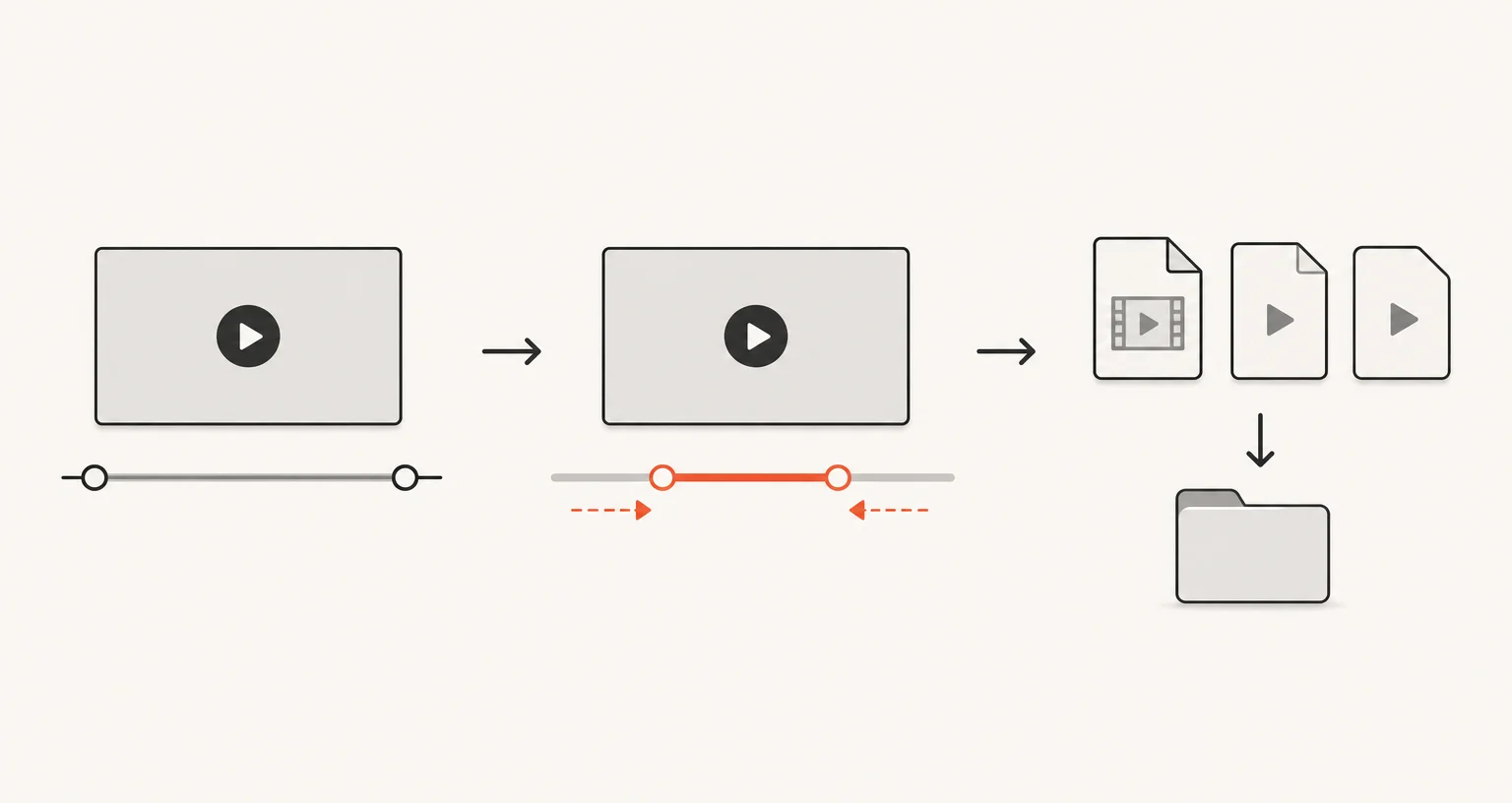
The editor lets you trim the recording, then download the original WebM, export a trimmed WebM, export MP4 (H.264, with AAC audio if the recording has sound), or export a GIF. MP4 and trimmed exports are re-encoded in real time, so they take about as long as the clip itself; GIFs are limited to 15 seconds at 10 frames per second. Before recording, you can cap the resolution at 720p, 1080p or 4K, or leave it on Auto for the native resolution. A smaller source is never enlarged.
Frequently asked questions
Does Record tab capture the tab's own audio?
Yes: whatever plays in that tab (a video, a call, background music) is recorded along with the picture.
Can I add my webcam and voice?
Yes. Turn on the webcam overlay before you start; a round bubble is added to the recording and your microphone is captured with it. Chrome asks for camera and microphone access once, in a small dedicated tab.
Can I draw on the recording while it's happening?
Only when the webcam overlay is on. A floating pencil button lets you draw one red freehand line at a time directly onto the recording; each stroke fades out after 3 seconds. There is no drawing tool for a tab recording without the webcam, and the video editor itself is trim-and-export only, with no annotation tools.
What can I export the recording as?
The original WebM, a trimmed WebM, MP4 (H.264), or a GIF of up to 15 seconds at 10 frames per second.