Recording
How to record your screen in Chrome
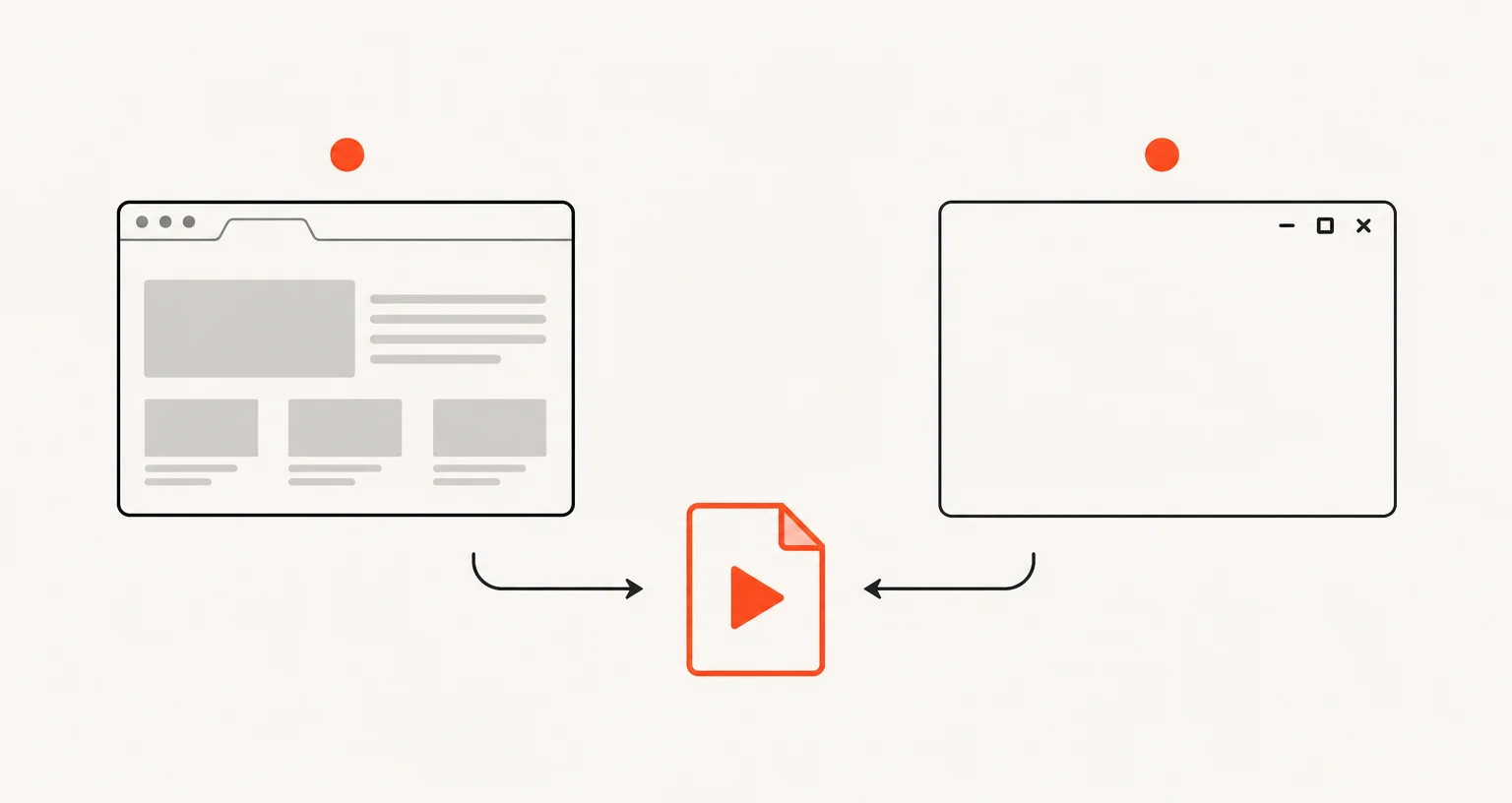
Chrome doesn't have a built-in screen recorder. Screenshot Suite adds two modes from the popup: Record tab, which keeps that tab's own sound, and Record screen / window, which captures any screen or window through Chrome's own picker but without system audio. Both support an optional webcam bubble and microphone.
Published · Updated
Does Chrome have a built-in screen recorder?
No. Chrome itself has no feature for recording a screen, a window, or a tab: this is one of the areas where an extension adds something the browser doesn’t offer on its own.
What are the two recording modes, and which should you use?
Record tab captures the current browser tab along with its own sound: the mode to reach for when what you need to show lives entirely inside one tab and its audio matters, like a demo with narration or a call. Record screen / window uses Chrome’s own picker to capture any screen or window, including applications outside the browser, but doesn’t capture system or application audio at all. Both start from the popup only: neither has a keyboard shortcut or a right-click entry.
Can you add your webcam and voice?
Yes, on both. Turning on the webcam overlay before you start adds a round bubble to the recording and captures your microphone with it. The two modes differ in one detail: while recording a tab with the webcam on, a floating pencil button also lets you draw a single freehand line directly onto the video, fading out after 3 seconds: that live-drawing tool is specific to Record tab and isn’t part of Record screen / window, whose webcam bubble is merged in only once you stop.
What can you export a recording as?
Trim it in the editor, then download the original WebM, export a trimmed WebM, export MP4 (H.264, with AAC audio when the recording has sound), or export a GIF of up to 15 seconds at 10 frames per second. Cap the resolution at 720p, 1080p or 4K before recording, or leave it on Auto for the source’s own resolution.
Frequently asked questions
Does Chrome have a built-in screen recorder?
No. There's no native Chrome feature for recording a screen, a window, or a tab.
Which recording mode should I use?
Record tab if what you need to show lives in one browser tab and its own sound matters. Record screen / window if you need to show something outside the browser, like another application or your whole desktop.
Can I add my webcam and voice to either mode?
Yes, both support an optional webcam bubble with your microphone. The live-drawing tool that lets you mark up the recording as it happens is specific to Record tab with the webcam on.
What can I export a recording as?
The original WebM, a trimmed WebM, MP4 (H.264), or a GIF of up to 15 seconds at 10 frames per second, after trimming it in the editor.