Video recording
Record your screen or a window in Chrome
The Record screen / window mode records your screen or one window using Chrome's screen picker. It does not capture system audio. When you stop, the video opens in an editor for trimming and export.
Published · Updated
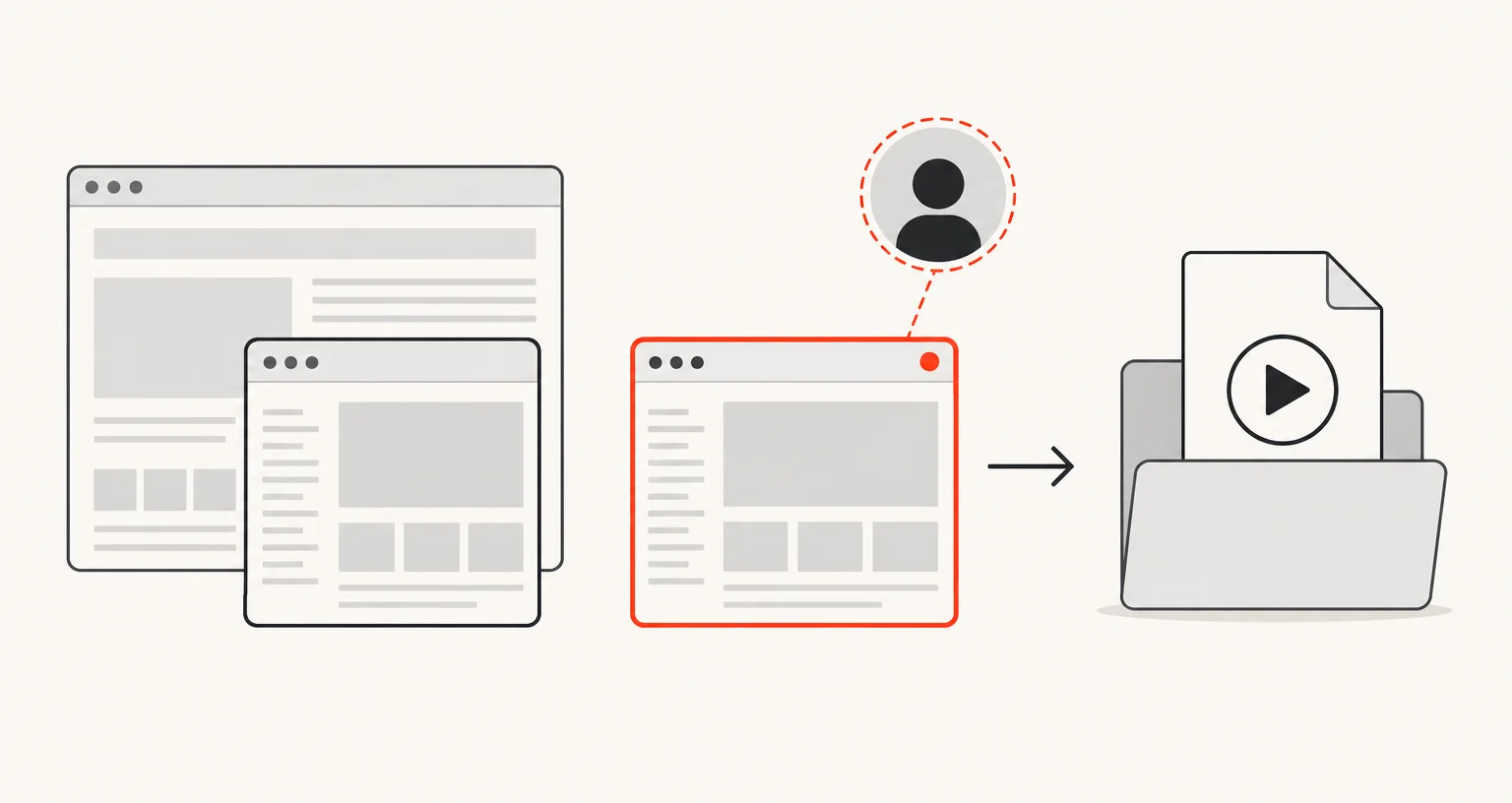
How do you record your screen?
Open the Recording tab of the popup and choose Record screen / window. Chrome shows its own screen picker: choose a screen or a window. The picker also lists Chrome tabs, which is how Chrome builds it, not something this extension adds. Click Stop in the popup to finish. There’s no keyboard shortcut or right-click menu entry for this mode.
Does it record sound, and can you add a webcam?
Not system sound: this mode captures picture only from the screen or window you choose. If you turn on the webcam overlay, your microphone is recorded with it, and the webcam is merged into the video as a round bubble once you stop; the merge takes about as long as the recording itself, with progress shown in the popup and the extension’s badge. Unlike Record tab, there’s no live-drawing tool for this mode: the webcam bubble is added, but any markup has to happen afterwards, and the video editor itself only trims and exports, with no annotation tools.
When should you use it instead of Record tab?
Use Record screen / window for anything outside a single browser tab: another application, your whole desktop, or several windows in view at once. Its neighbor, Record tab, is limited to one browser tab but keeps that tab’s own sound and supports live drawing with the webcam on: a real trade-off between reach (any window, any app) and what you get to keep or mark up while recording.
What can you do with the video, and what quality can you choose?
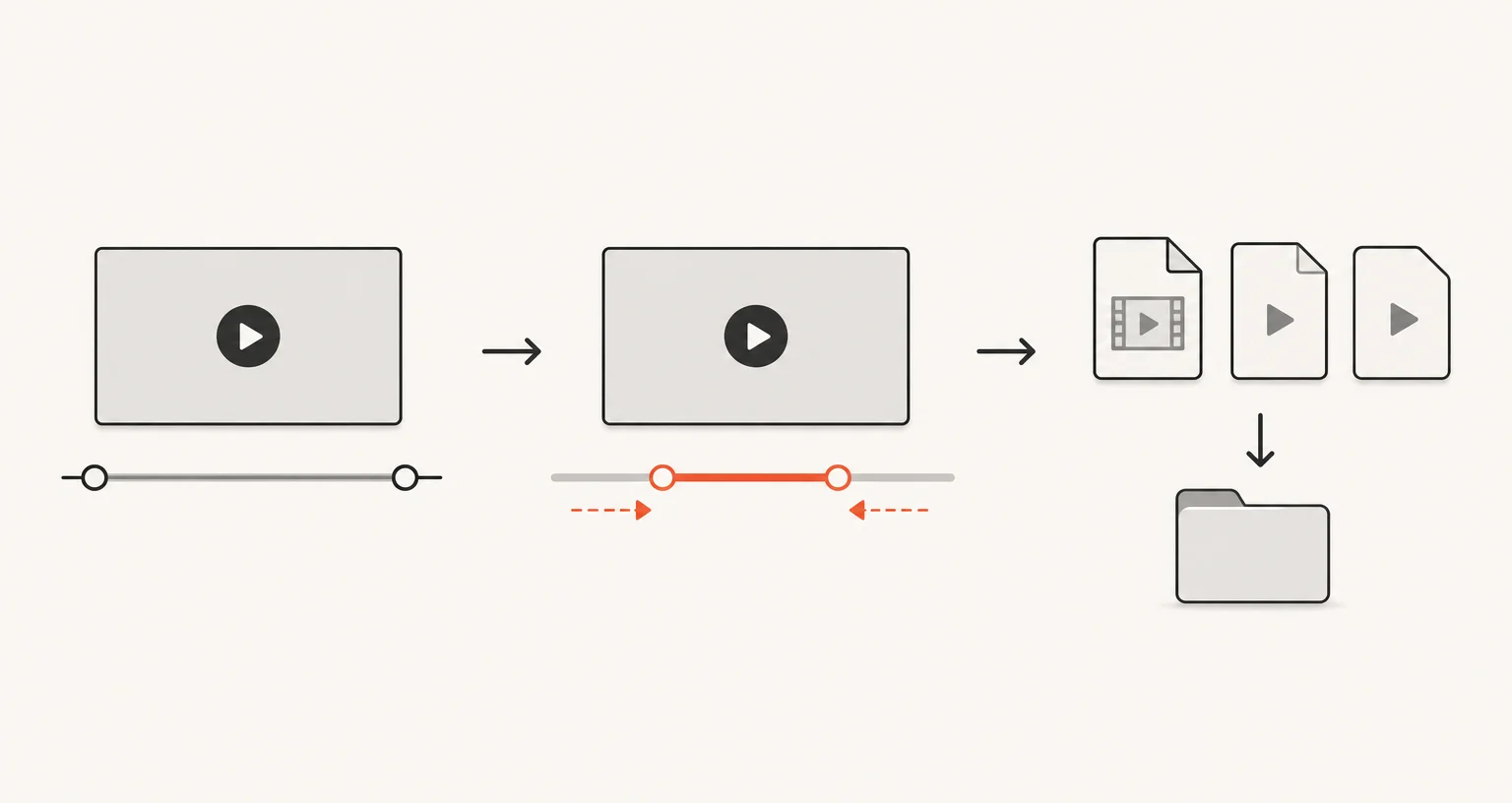
Trim it, then export the original WebM, a trimmed WebM, MP4 (H.264), or a GIF of up to 15 seconds at 10 frames per second. Before recording, cap the resolution at 720p, 1080p or 4K, or leave it on Auto for the native resolution. A smaller source is never enlarged.
Frequently asked questions
Does it record system audio, like music playing on my computer?
No. Record screen / window captures picture only from the system, with no system or application audio. Turn on the webcam overlay if you want your voice narrated over it through your microphone.
Can I draw on the recording like with Record tab?
No. The live-drawing tool is specific to Record tab with the webcam bubble on. Record screen / window's editor is trim and export only, with no annotation tools.
Why does Chrome's picker offer "Chrome Tab" as an option here too?
That's part of Chrome's own screen-sharing picker, not something Screenshot Suite adds or can remove. If you want to record a single tab with that tab's own sound, use Record tab instead: it's the more direct choice and keeps the tab's audio.