Shortcuts
Screenshot extension not working: common fixes
Most "the extension isn't working" cases have one of a few real causes. A page Chrome blocks every extension from reading, a shortcut conflict, a page that exceeds a browser size limit, or content the browser won't let a page read. Screenshot Suite reports which one applies rather than failing silently; here is what each message means and what to do about it.
Published · Updated
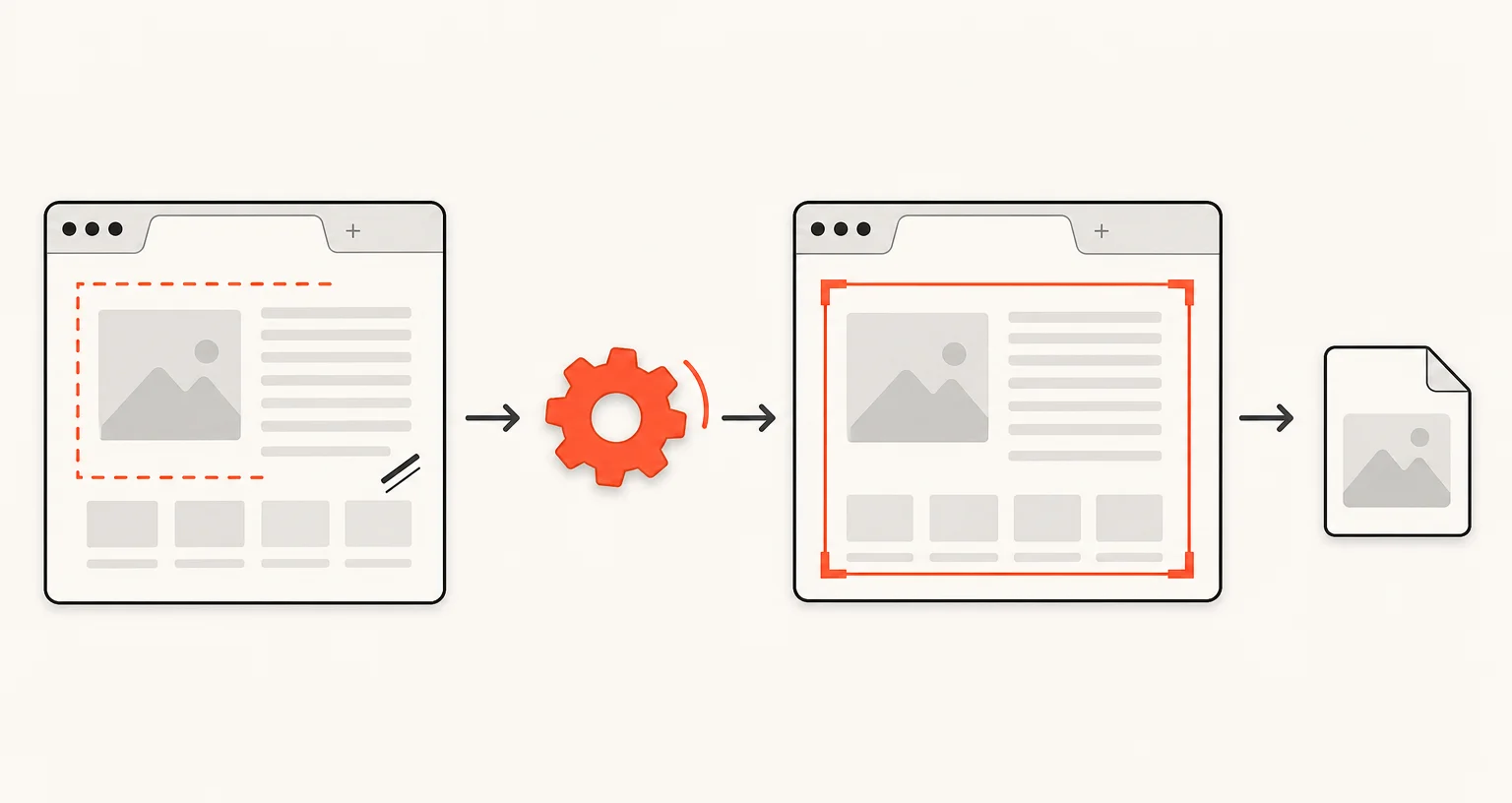
Why does a screenshot extension sometimes seem to do nothing?
A handful of real, specific causes explain most cases: a page Chrome doesn’t let any extension read, a keyboard shortcut conflict, a page too large for the browser’s own limits, or protected content a page won’t let the browser read. Screenshot Suite reports which one applies with a clear message rather than failing silently, so the fix below usually matches something you’ve already seen on screen.
The page can’t be captured at all
Chrome blocks every extension (not just this one) from reading or capturing its own internal pages (chrome://... URLs) and the Chrome Web Store itself. There’s no setting or permission that changes this; it’s a restriction Chrome applies at the platform level to protect its own interface.
The keyboard shortcut does nothing
Visible area and Select an area are the only two modes with a real keyboard shortcut (Alt+Shift+X and Alt+Shift+S). If pressing one does nothing, another extension, or a shortcut already used elsewhere in Chrome, may be assigned to the same keys. Open chrome://extensions/shortcuts, find Screenshot Suite, and check for a conflict or reassign it to something else entirely.
Full page or Full page from here refuses to start
A browser canvas can’t exceed 32,767 pixels on a side or about 268 million pixels in total. Rather than failing after a long capture, Screenshot Suite checks the page’s estimated size first and stops immediately with a message if it’s too large. Select an area or Full page from here on a smaller section usually gets you the result you need instead.
Video frame or Page frame (iframe) reports it can’t proceed
Video frame shows a clear message if the page has no video, if no video is currently visible, if the video hasn’t loaded an image yet, or if the video is protected because it comes from another origin the browser won’t let a page read pixels from. Page frame (iframe) simply has nothing to capture if the page has no iframe to click.
Nothing seems to load, or the extension icon looks greyed out
Two ordinary Chrome behaviors, not specific to this extension: an extension is disabled in Incognito windows unless you explicitly turn on “Allow in Incognito” for it on chrome://extensions, and Chrome sometimes needs a tab reload (or, rarely, a browser restart) to finish applying an extension update.
Frequently asked questions
Why doesn't my Alt+Shift+X or Alt+Shift+S shortcut do anything?
Another extension, or a shortcut already used elsewhere in Chrome, may be assigned to the same combination. Check and reassign it on chrome://extensions/shortcuts.
Why can't I capture this page at all?
If it's a chrome:// page or the Chrome Web Store, no extension can capture it. Chrome blocks extension access to those pages for everyone, not just Screenshot Suite.
Why did Full page refuse to start on a very long page?
A browser canvas can't exceed 32,767 pixels on a side or about 268 million pixels in total. Screenshot Suite checks the page's size before starting and stops immediately if it's too large, rather than failing after a long wait. Try Full page from here or Select an area instead.
Does Screenshot Suite work in Incognito windows?
Only if you've explicitly allowed it. Chrome disables every extension in Incognito by default; turn on "Allow in Incognito" for Screenshot Suite on chrome://extensions, the same setting used for any other extension.