Image capture
Iframe screenshot in Chrome
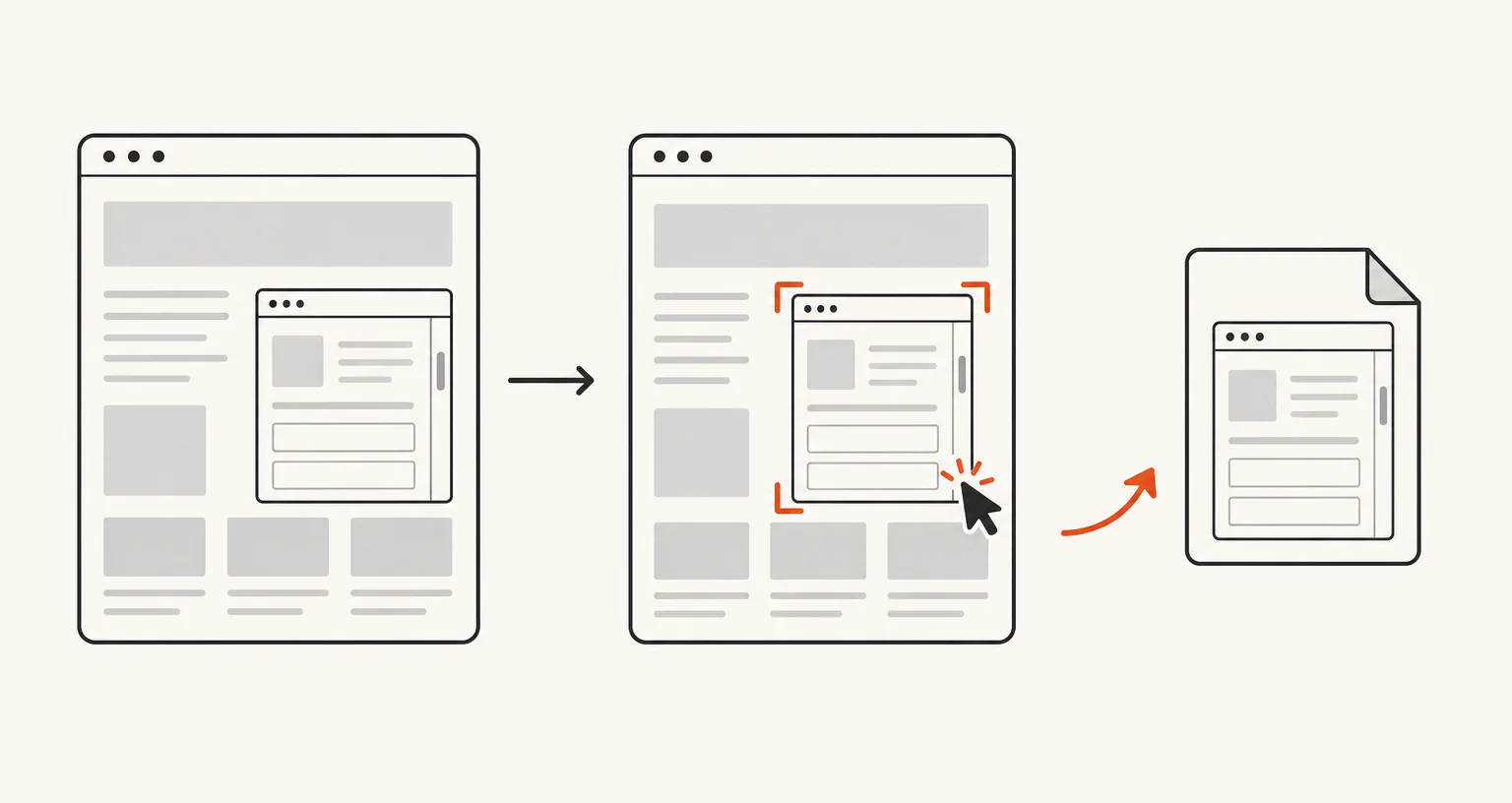
The Page frame (iframe) mode captures a whole iframe of the page. Start it, then click the frame you want. Screenshot Suite captures that frame in full, including frames that come from another website (cross-origin), and opens the result in the editor.
Published · Updated
How do you capture an iframe?
Open the popup and choose Page frame (iframe). A hint appears on the page reminding you to click the frame you want: click it, and Screenshot Suite captures that frame in full. Press Esc at any point to cancel. There’s no keyboard shortcut or right-click menu entry for this mode; it starts from the popup only.
Why is this different from selecting an area?
A selected area is a rectangle of pixels on the screen, bounded by what’s currently visible. Page frame (iframe) capture targets the frame as an element of the page, so you get all of it (including the part that would need its own scrolling inside the frame) even when the frame is larger than what’s on screen. This makes it the mode for embedded dashboards, embedded documents, maps, payment widgets, or any other third-party app embedded on a page, where a plain rectangular selection would only ever catch part of it.
How does it compare to Video frame?
Both modes target one specific element on the page rather than the whole viewport: Video frame grabs a single still frame from an HTML5 video, while Page frame (iframe) captures an entire embedded iframe. Use Page frame (iframe) for anything that reads as its own embedded webpage; use Video frame when what you want is inside a <video> element.
What happens after the capture, and what are the limits?
The image opens in the annotation editor with the same Settings and export options as every image mode: PNG or JPEG, PDF, clipboard copy, auto-download, preview, URL and date stamp, 50% downscale, and an optional delay before the capture. Page frame (iframe) is built specifically for iframes: for a mix of iframe and surrounding page content, use Select an area or Full page instead. Like every mode, it cannot run on Chrome’s own internal pages or the Chrome Web Store.
Frequently asked questions
Does this capture the whole iframe, or just the part visible on screen?
The whole iframe, including any part that would need its own scrolling inside the frame to see, not just what happens to be on screen when you click it.
Does it work on iframes from another website?
Yes. Page frame (iframe) captures cross-origin iframes as well as same-origin ones, embedded dashboards, documents or third-party widgets included.
What if the page doesn't have any iframes?
There's nothing to click. Use Full page, Select an area or Visible area to capture ordinary page content instead.