Shortcuts
Chrome screenshot keyboard shortcuts
Chrome itself has no built-in screenshot keyboard shortcut. What people mean by "the shortcut" is either an operating-system shortcut (different on Windows, Mac and Chromebook) or a command inside Chrome DevTools. Screenshot Suite adds exactly two real, customizable shortcuts of its own (Alt+Shift+X and Alt+Shift+S) and a right-click menu for the same two.
Published · Updated
Does Chrome have a built-in screenshot shortcut?
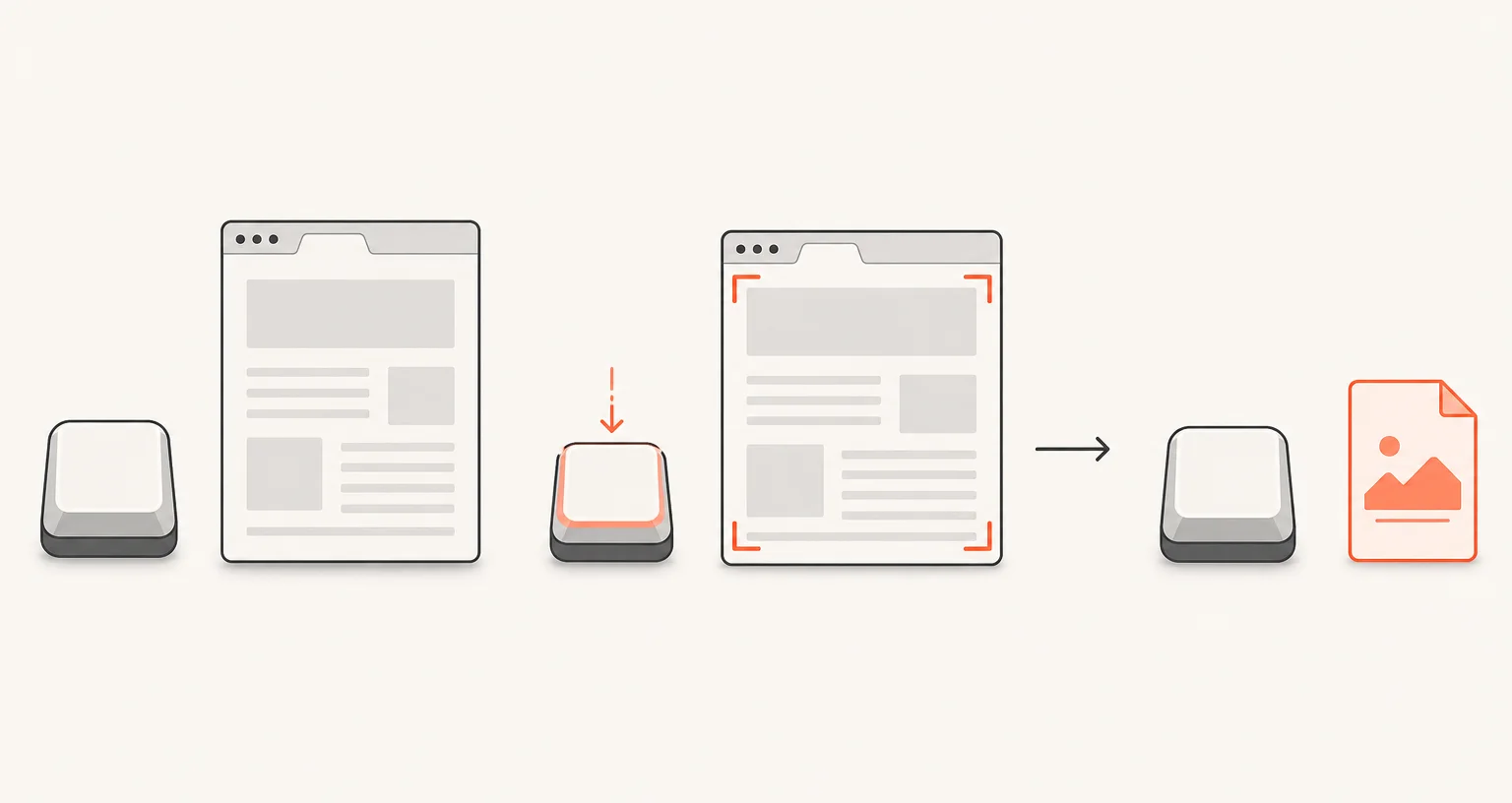
No. Chrome doesn’t ship a keyboard shortcut for taking a screenshot. What people usually mean by “the Chrome screenshot shortcut” is one of two different things: a shortcut built into your operating system, or a command inside Chrome’s own developer tools. Neither is specific to Chrome as a browser.
What are the OS-level shortcuts?
- Windows:
PrtScncopies the whole screen to the clipboard;Win+PrtScnsaves it straight to your Pictures\Screenshots folder.Win+Shift+Sopens the Snipping Tool overlay to select a region, a window, or the full screen, and copies the result to the clipboard for you to paste. - Mac:
Cmd+Shift+3captures the whole screen to the desktop;Cmd+Shift+4lets you drag a region (press Space afterward to switch to capturing a single window);Cmd+Shift+5opens a screenshot and screen-recording options panel. - Chromebook:
Ctrl+ the Show windows key (the rectangle-with-lines key, often in place of F5) captures the full screen;Shift+Ctrl+ the Show windows key lets you select a region or a window instead.
None of these need an extension, and none of them annotate or export the result for you: they save a plain image file or put it on the clipboard.
What can Chrome’s DevTools do without any extension?
Press Ctrl+Shift+I (or F12 on Windows/Linux, Cmd+Option+I on Mac) to open DevTools, then Ctrl+Shift+P (Cmd+Shift+P on Mac) to open the Command Menu, and type “screenshot”. Chrome offers four built-in commands there: Capture full size screenshot (the entire scrollable page), Capture screenshot (just the visible viewport), Capture area screenshot (drag a region), and Capture node screenshot (whatever element is currently selected in the Elements panel). These are genuinely useful and need nothing installed: the trade-off is that they live several clicks deep inside a developer tool most people never open, save a plain PNG with no annotation, and offer no video recording at all.
What shortcuts does Screenshot Suite add, and can you change them?
Screenshot Suite adds exactly two real keyboard shortcuts: Alt+Shift+X for Visible area and Alt+Shift+S for Select an area. Both also work from the page’s right-click menu, and both can be reassigned to whatever combination you prefer on chrome://extensions/shortcuts, the same page Chrome uses for every extension’s shortcuts, not something specific to this one.
Why don’t all 9 modes have a shortcut?
Only Visible area and Select an area do, today. Full page, Full page from here, Page frame (iframe), Video frame, Screen or window, and the two recording modes (Record tab, Record screen / window) all start from the popup only. If a shortcut you’ve set stops responding, see Screenshot extension not working for the most common cause.
Frequently asked questions
Does Chrome have a built-in screenshot shortcut?
No. Chrome itself doesn't ship one. What's available instead is an operating-system shortcut (different on Windows, Mac and Chromebook) or a command inside DevTools.
What shortcuts does Screenshot Suite add?
Two: Alt+Shift+X for Visible area and Alt+Shift+S for Select an area. Both also work from the right-click menu. The other 7 capture modes don't have a shortcut and start from the popup.
Can I change these shortcuts, or add my own?
Yes. Chrome lets you reassign any extension's keyboard shortcuts on chrome://extensions/shortcuts.
Why don't all 9 modes have a keyboard shortcut?
Only Visible area and Select an area do, in the current version. The other modes (Full page, Full page from here, Page frame (iframe), Video frame, Screen or window, and the two recording modes) are started from the popup only.