Recording
How to record a Google Meet, Teams or Zoom meeting
Open the Screenshot Suite popup, tick Record the microphone, then choose Record tab if the meeting runs in a Chrome tab (Google Meet, or Teams and Zoom on the web), or Record screen / window with Entire screen and Chrome's share-audio option on if it runs in a desktop app. Ask the participants first: they are not notified automatically.
Published · Updated
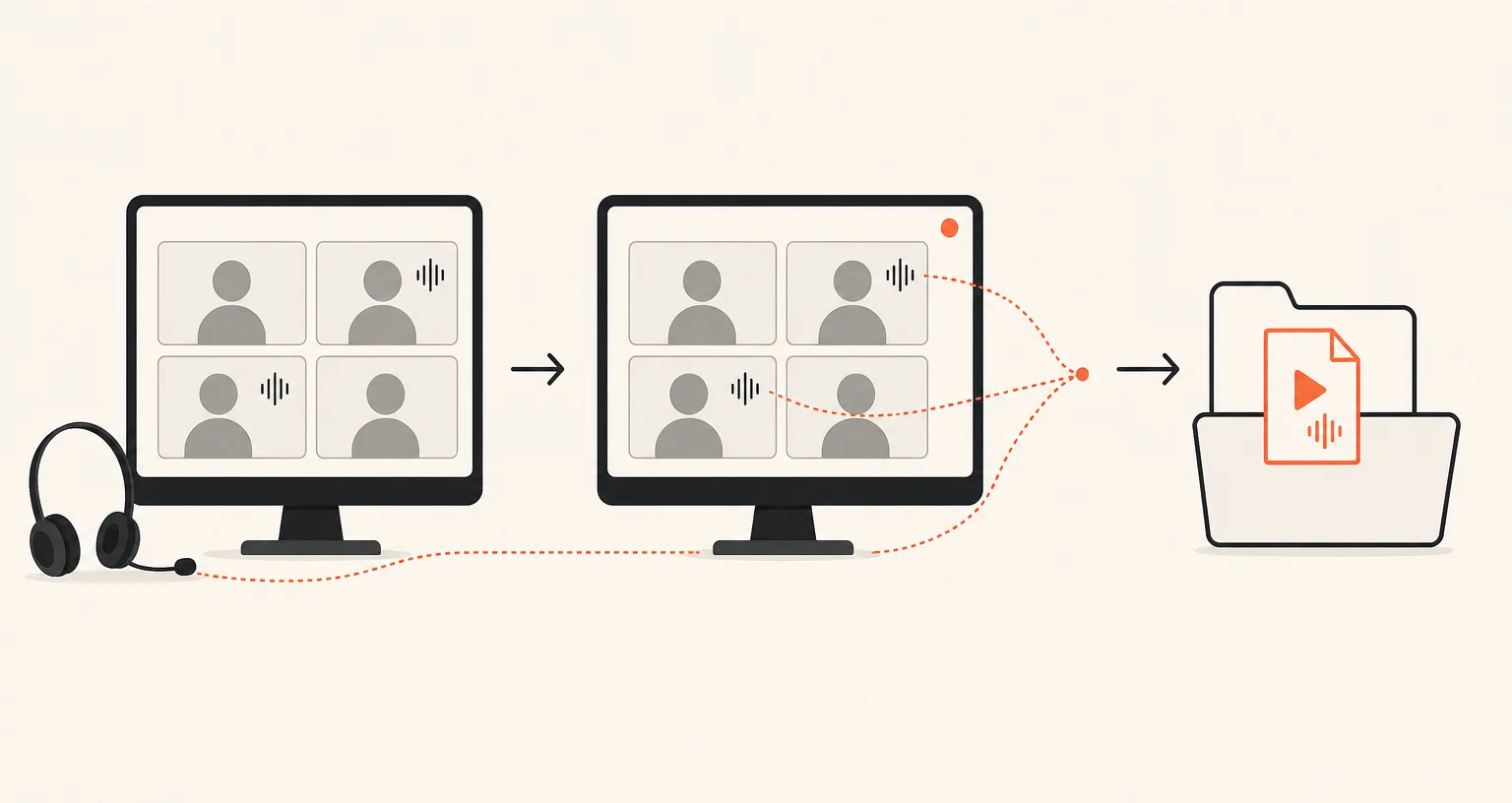
How do you record an online meeting in Chrome?
It depends on where the meeting runs. If you joined from Chrome, such as Google Meet or the web versions of Microsoft Teams and Zoom, record the tab. If the meeting runs in a desktop application, record the entire screen with its sound. In both cases, add your microphone, since the meeting never plays your own voice back to you.
| Where the meeting runs | Mode | What to turn on |
|---|---|---|
| A Chrome tab (Google Meet, Teams or Zoom on the web) | Record tab | Record the microphone |
| A desktop app (Teams, Zoom or another meeting app) | Record screen / window | Record the microphone, then Entire screen and share audio in Chrome’s picker |
How do you record a meeting held in a Chrome tab?
- Join the meeting in Chrome and stay on its tab.
- Open the Screenshot Suite popup and switch to its Recording tab.
- Tick Record the microphone. The first time, Chrome asks for microphone access in a small dedicated tab.
- Choose Record tab. A timer shows that recording is on.
- Click Stop in the popup when the meeting ends. The video opens in the editor.
The tab’s sound carries everything the meeting plays: the other participants’ voices, and any video or presentation shared with sound. Your microphone is mixed in, and you can mute and unmute it from the recording controls during the meeting, for example while you’re not speaking.
How do you record a meeting held in a desktop app?
- Open the Screenshot Suite popup, switch to Recording and tick Record the microphone.
- Choose Record screen / window. Chrome shows its own screen picker.
- Pick Entire screen and leave Chrome’s share-audio option on. Chrome usually offers that option for a tab or a whole screen, not for a single window, so a single window would be recorded without the participants’ voices.
- Click Stop in the popup when you’re done.
The whole screen is recorded, so close anything private and silence notifications before you start. The participants’ voices come from your computer’s sound, and yours from the microphone.
How do you avoid an echo or a missing voice?
- Wear headphones. Without them, your microphone also picks up the participants from your speakers, and their voices end up in the recording twice, slightly out of step.
- Tick Record the microphone. Without it, the recording has everyone except you.
- Test your microphone first. A link under the microphone option opens a page where you choose your microphone, watch its level move as you speak, and check that sound and picture stay in sync.
- Keep Chrome’s share-audio option on when you record the screen. If you switch it off in the picker, the video has no meeting sound.
If the microphone is unplugged during the meeting, the recording carries on without it, warns you, and picks it up again when it comes back.
Do you need everyone’s permission to record a meeting?
Ask before you record. The rules depend on where you and the other participants are, and in many places everyone in a call must agree to being recorded. Your company or school may also have its own policy on recording meetings. Screenshot Suite doesn’t join the meeting and doesn’t notify anyone: it records what your own computer shows and plays. So say at the start that you are recording and why, and stop if someone objects.
What can you do with the meeting recording?
When you stop, the video opens in the editor. Trim the waiting time at the start and the end, then download the original WebM straight away, or export MP4 (H.264, with AAC audio) for players and apps that don’t read WebM. Trimmed and MP4 exports are re-encoded in real time, so a one-hour meeting takes about an hour to export: the original WebM is the quick option for a long recording. Before recording, you can cap the resolution at 720p, 1080p or 4K, or leave it on Auto.
The recording stays on your device: nothing is uploaded, and there is no account. See what stays on your device for the details.
Frequently asked questions
Can I record a Google Meet, Teams or Zoom meeting with Screenshot Suite?
Yes. Use Record tab when the meeting runs in a Chrome tab, or Record screen / window with Entire screen and Chrome's share-audio option on when it runs in a desktop app. Tick Record the microphone in both cases so your own voice is included.
Why is my own voice missing from the recording?
The meeting doesn't play your voice back to you, so it isn't in the tab's or the computer's sound. Tick Record the microphone before you start, or turn it on from the recording controls.
Are the other participants notified that I'm recording?
No. Screenshot Suite records what your own computer shows and plays; it doesn't join the meeting and doesn't tell anyone. Telling the participants and getting their agreement is up to you.
Where is the meeting recording saved?
On your device. The video opens in the editor when you stop, and the files you download or export go to your Downloads folder. Nothing is uploaded to us or to anyone.
Does it cost anything?
No. Screenshot Suite is Free, and both recording modes, the microphone and the exports are part of it.