Image capture
Full page screenshot in Chrome
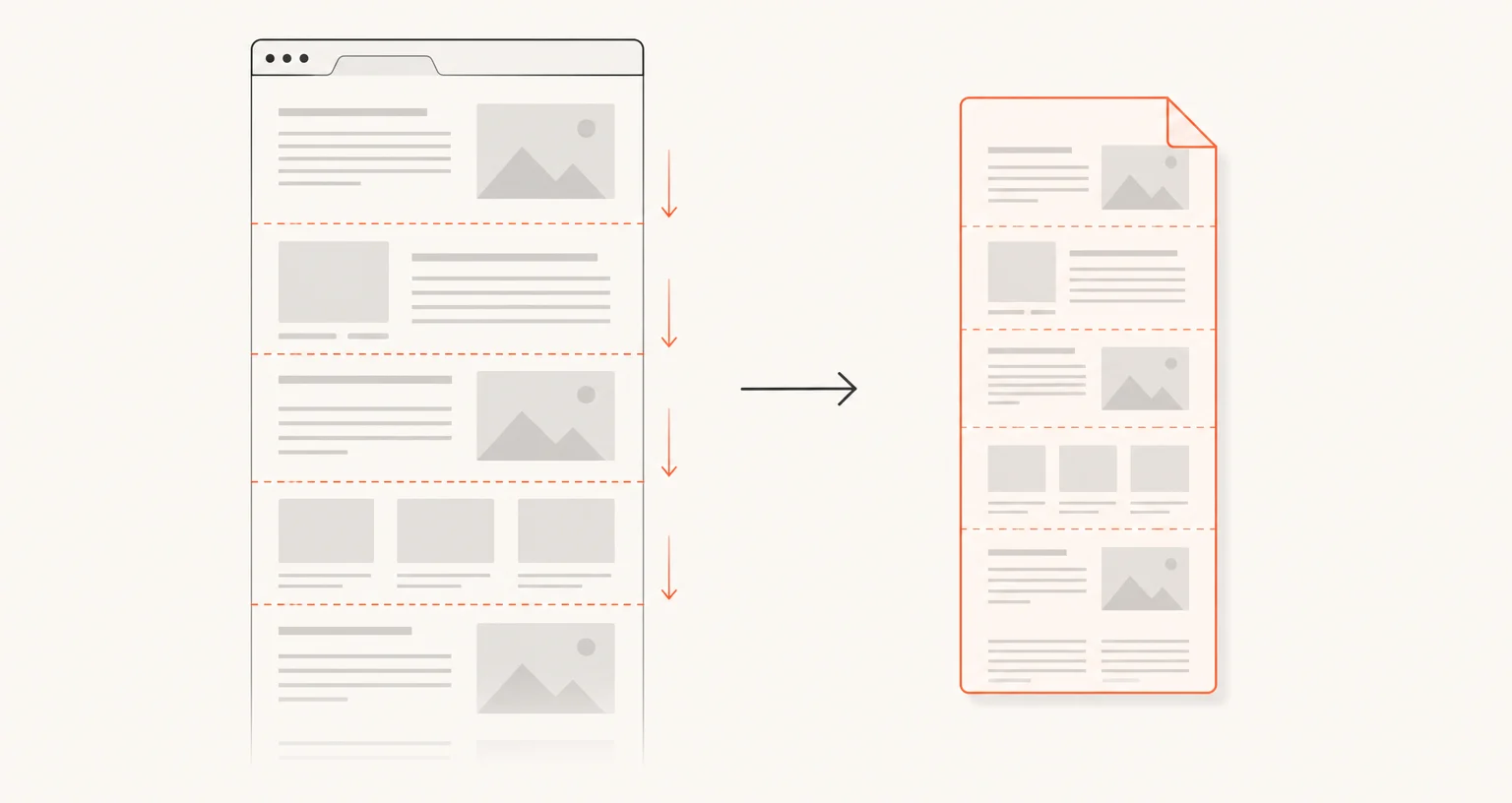
The Full page mode scrolls through the page, waits for images that load as you scroll, and stitches everything into one tall image. Cross-origin iframes are composited into the result. The whole process runs in your browser.
Published · Updated
How does Screenshot Suite capture a full page?
Open the popup and choose Full page. Screenshot Suite scrolls through the page one screen at a time, capturing each slice, then stitches the slices together on a canvas in your browser. Before the real capture, it scrolls through once so that images loaded on demand have time to appear, waiting up to 1.5 seconds per screen for them. Cross-origin iframes on the page are composited into the result. Full page has no keyboard shortcut and no right-click menu entry: it starts from the popup only, unlike Visible area and Select an area.
When should you use Full page instead of Full page from here?
Full page is the mode for capturing a page exactly as a visitor would scroll through it from the very top: a long article, a full product page, documentation, or anything you want to archive or share in its entirety. Its closest neighbor, Full page from here, uses the same scroll-and-stitch engine but starts from wherever you’re already scrolled to, useful when you don’t need the top of the page (a cookie banner, a header you’ve already captured separately) or when a page is long enough that starting partway through keeps the result under the size limits below.
Why does a long page take time, and what are the size limits?
Chrome limits how fast a tab can be captured to about two captures per second, so Screenshot Suite leaves a short pause between slices while the popup shows a progress bar. A browser canvas cannot exceed 32,767 pixels on a side or about 268 million pixels in total; Screenshot Suite estimates the final size before starting and, if the page is too large, stops immediately with a clear message instead of failing after a long wait. Try Full page from here or Select an area on a smaller section instead. Pages with a sticky or fixed header, or very aggressive lazy-loading, are handled on a best-effort basis: a sticky element can appear more than once in the stitched result, and an image that hasn’t finished loading within the 1.5-second wait may show up blank.
What can you do with the result, and what are the other limits?
The image opens in the annotation editor, using the same popup Settings as every other image mode (auto-download, preview, clipboard copy, save-location prompt, URL and date stamp, PNG or JPEG, 50% downscale for high-density screens, and an optional delay before the capture starts). From there, export PNG or JPEG, copy to the clipboard, or export a PDF: a very long capture is split across multiple A4 pages in the PDF automatically. Like every mode, Full page cannot capture Chrome’s own internal pages (chrome://...) or the Chrome Web Store; that’s a Chrome restriction on all extensions, not specific to this one.
Frequently asked questions
Why does a full-page screenshot take longer than a regular one?
Chrome limits how fast a tab can be captured to about two frames per second, and Screenshot Suite also waits up to 1.5 seconds on each screen for lazy-loaded images to appear before moving on. The popup shows a progress bar while this runs.
Why is part of my full-page screenshot cut off, blank, or repeated?
Two known causes. A sticky or fixed header/footer can appear more than once in the stitched image, once per scroll step. An image with very aggressive lazy-loading may not finish loading within the 1.5-second wait and show up blank. If the page itself exceeds the browser's canvas limit (32,767 pixels on a side, or about 268 million pixels total), Screenshot Suite refuses to start and tells you before it wastes your time.
Can I capture just the rest of a long page, not the whole thing?
Yes. Use Full page from here to scroll-and-stitch starting from wherever you already are, or Select an area to draw a specific region.