Online meetings
Screenshot Suite for recording online meetings
Screenshot Suite records an online meeting from Chrome: the meeting tab with its sound, or your entire screen with your computer's sound when the meeting runs in a desktop app, plus your own microphone. When you stop, you trim the video and keep it as WebM or MP4 on your device, with no account and no upload.
Published · Updated
How do remote teams use Screenshot Suite for meetings?
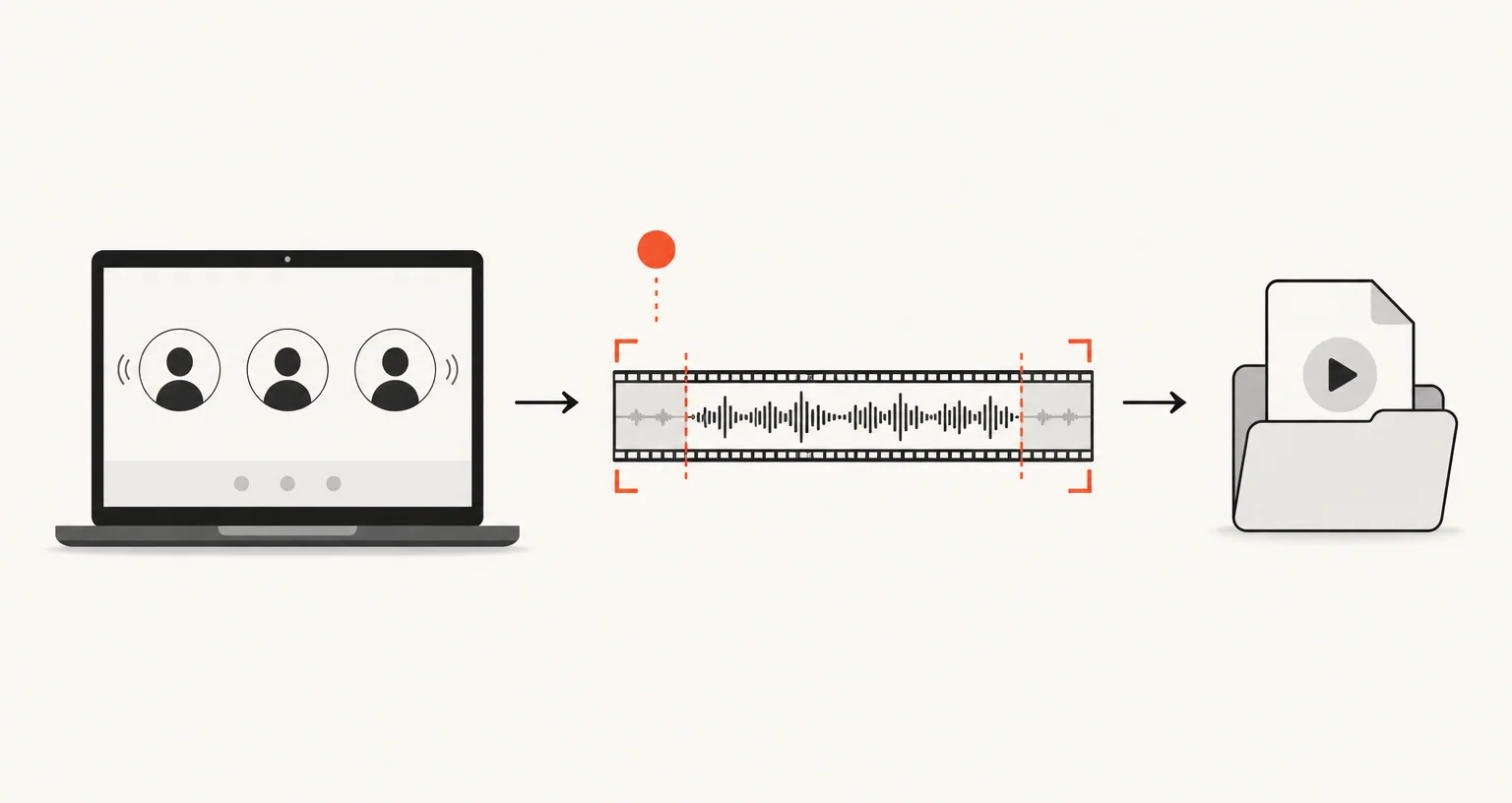
Record the meetings worth keeping: a weekly sync for a colleague in another time zone, a training session to share with new joiners, a client demo, or an interview, always with the agreement of the people in it. Screenshot Suite runs in Chrome, so it works with any meeting service you can open in a tab, and with desktop meeting apps through a screen recording.
Because the recording is made on your own computer, nothing joins the call and nothing is uploaded: you decide where the video goes once it exists.
Which recording mode fits which meeting?
| Where the meeting runs | Mode | What carries the other participants’ voices |
|---|---|---|
| A Chrome tab (Google Meet, Teams or Zoom on the web) | Record tab | The tab’s own sound, always recorded |
| A desktop app (Teams, Zoom or another meeting app) | Record screen / window | Your computer’s sound, shared from Chrome’s picker with Entire screen |
In both cases, tick Record the microphone: the meeting never plays your own voice back to you, so without it you would be the only one missing. The step-by-step version is in how to record a Google Meet, Teams or Zoom meeting.
What should you check before you press record?
- Consent. Say at the start that you are recording and why, and stop if someone objects. Rules differ between countries and states, and many workplaces and schools have their own policy.
- Headphones. Without them, your microphone picks up the other participants from your speakers and their voices are recorded twice.
- Your microphone. A link under the microphone option opens a page to choose your microphone, watch its level move as you speak, and check that sound and picture stay in sync.
- Your screen. A desktop-app meeting means recording the entire screen: close anything private and silence notifications first.
What do you do with the recording afterwards?
When you stop, the video opens in the editor. Trim the minutes before everyone joined and after the call ended, then download the original WebM or export MP4 (H.264 with AAC audio) for players that don’t read WebM. You can cap the resolution at 720p or 1080p before recording to keep the file smaller.
The recording is saved on your device like every other Screenshot Suite capture: no account, no cloud copy. Read what stays on your device for the full list.
Frequently asked questions
Can Screenshot Suite record a Google Meet, Teams or Zoom meeting?
Yes. Use Record tab when the meeting runs in a Chrome tab, or Record screen / window with Entire screen and Chrome's share-audio option on when it runs in a desktop app. Tick Record the microphone in both cases.
Do the other participants know they are being recorded?
Not from Screenshot Suite. It records what your own computer shows and plays, without joining the meeting or notifying anyone, so announce it yourself and get everyone's agreement before you start.
Is there a meeting bot or an account to create?
No. Nothing joins your meeting and there is no account. The recording is made in your browser and saved on your device.
How long does it take to get an MP4 of a long meeting?
MP4 and trimmed exports are re-encoded in real time, so a one-hour meeting takes about an hour. Downloading the original WebM is immediate.
Can I mute my microphone during the meeting?
Yes. The recording controls let you mute and unmute the microphone while you record; the meeting's own sound keeps being recorded.